Windows Screenshot Tool, Fast and Native · QuipShot
Fast, native screenshot tool for Windows 10 and 11. Capture any region, window, scrolling page or on-screen text, mark it up in place, and drag it anywhere.
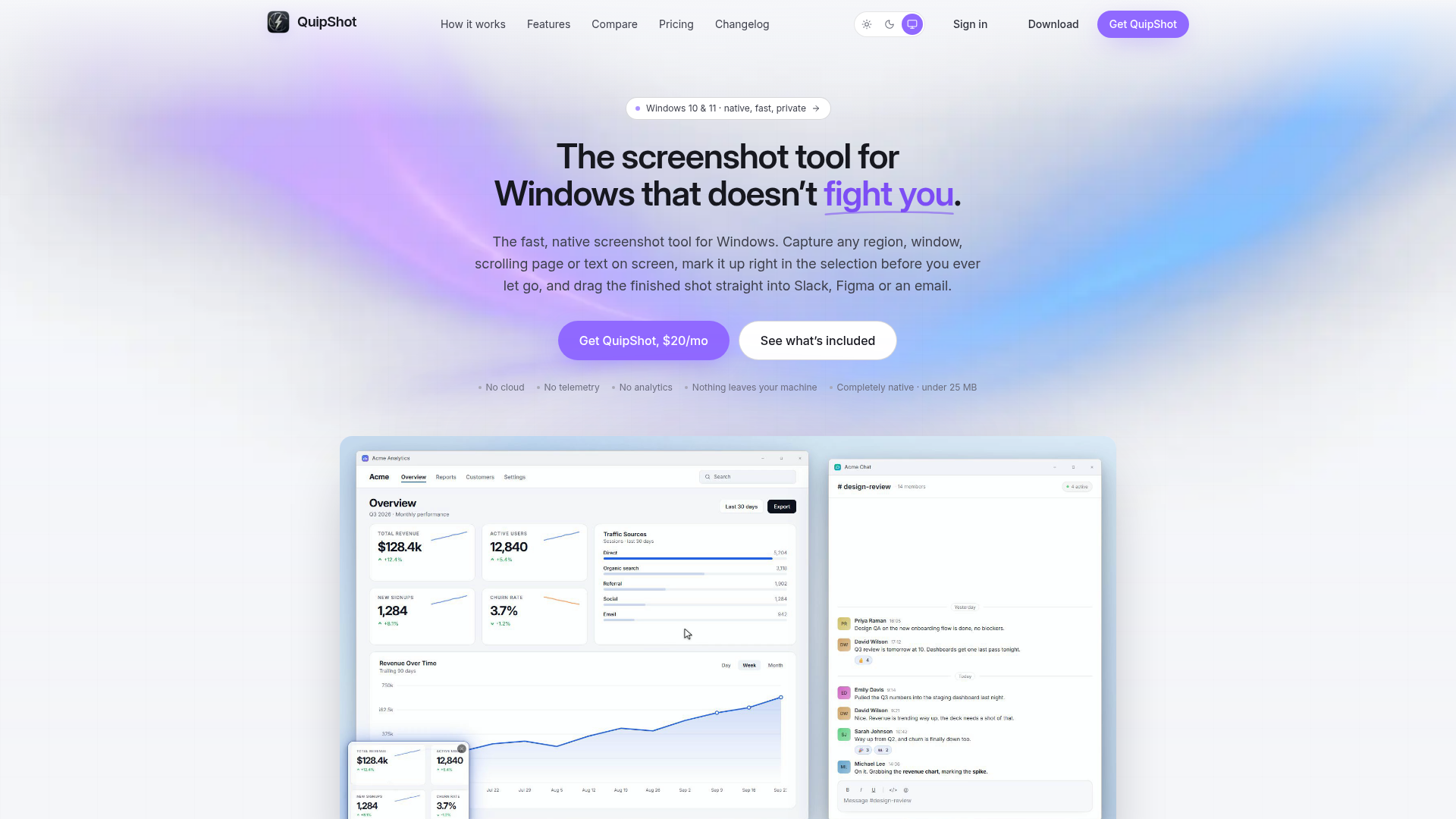
What is QuipShot?
QuipShot is a native screenshot tool for Windows 10 and 11 that captures a region, a window, a full screen, a scrolling page or text on screen from a single overlay. It is built for people who screenshot all day, including developers, designers, technical writers, product managers, QA engineers and support teams. What sets it apart is that annotation happens inside the selection before the capture is committed, and the finished shot is copied, saved and left as a floating thumbnail that can be dragged into another app.
Key features
- Five capture modes
- Region, window, fullscreen, scrolling and grab-text are all started from one overlay with one shortcut.
- Annotation inside the selection
- Fourteen tools are available in the overlay itself, including arrows, lines, rectangles, circles, freehand, highlighter, blur, pixelate, text, numbered steps, emoji, crop and spotlight.
- Scrolling capture
- QuipShot auto-scrolls a long page or chat and stitches it into one tall image, keeping sticky headers and footers from repeating and blending the seams.
- On-device text grab
- Text is lifted off the screen from an image, a video or anywhere else, in over a hundred languages, with no setup and nothing leaving the machine.
- Drag-out thumbnails
- Fresh captures float as thumbnails that act as a real drag source for Slack, Figma, email or any app that accepts an image.
- True colour on demanding displays
- HDR monitors, high-DPI displays, games and GPU-drawn apps are captured at the colour actually shown, and captures come out at the real resolution across mixed-DPI and multi-monitor setups.
- Small and private
- The app is under 25 MB installed, with no bundled browser, no background services, no cloud, no telemetry and no analytics.
How to use QuipShot
- Press the global shortcut to open the capture overlay while everything behind it keeps running.
- Pick the capture mode from the overlay: region, window, monitor, scroll or colour. In region mode a magnifier and exact pixel readout follow the drag, and window mode highlights the window under the cursor.
- Mark up the shot inside the selection using the inline annotation toolbar, adding arrows, boxes, text, numbered steps, highlight or live blur.
- Finish the capture, which copies it to the clipboard, writes it to disk and leaves it as a floating thumbnail.
- Drag the thumbnail straight into Slack, Figma or an email, or pin it and come back to it later. Past shots can be pulled up from the history in the tray and dragged out or reopened in the editor.
Use cases
- Developers and QA engineers marking up a bug with arrows, numbered steps and blur before sending it to a team chat.
- Designers and product managers capturing a scrolling page or long changelog as one tall image for review.
- Technical writers and educators lifting text off the screen with grab-text instead of retyping it.
- Support teams capturing a specific window or region and dragging the thumbnail straight into a ticket or email.
- Streamers and content creators grabbing clean still frames from video or games, where other tools return a black box.
Pricing
QuipShot has one flat tier at $20 per month (USD), with every feature included. There is no free tier, no trial and no upsells; the first week works like a trial, and a full refund of the $20 is available if requested within 7 days. Checkout is handled by Stripe, one subscription covers up to 3 Windows devices, and annual billing and team seats are stated as coming.
FAQ
Is QuipShot free to use?
No. QuipShot is a single paid tier at $20 per month with every feature included, and there is no stripped-down free version. The first week functions like a trial, and the full $20 is refunded if the request is made within 7 days.
Which Windows versions does QuipShot support?
QuipShot runs on 64-bit Windows 10 and Windows 11. It is built as a native Windows application rather than a web page in a wrapper, and it handles mixed-DPI, multi-monitor, dual-4K and ultrawide setups.
Can QuipShot pull text out of an image or video?
Yes. The grab-text mode lifts text straight off the screen from an image, a video or anywhere else, highlights the words it finds as it goes, and supports over a hundred languages. The recognition runs entirely on the machine, so nothing is uploaded.
Does QuipShot record video?
No. QuipShot is for still screenshots only, and screen recording is out of scope. It does capture clean still frames of video and games, which is a case where some other tools return a blank or black image.
How many devices can I use QuipShot on?
One subscription covers up to 3 Windows machines, with no license keys to copy around. Signing in with the account is enough, and a seat can be freed from the account page when replacing a PC.
Can I drag a QuipShot screenshot straight into another app?
Yes. The floating thumbnail is a real drag source, so a finished capture can be dropped into Slack, Figma, an email, an editor or anything else that accepts an image or a file.
Windows Screenshot Tool, Fast and Native · QuipShot
Fast, native screenshot tool for Windows 10 and 11. Capture any region, window, scrolling page or on-screen text, mark it up in place, and drag it anywhere.
 Cloudflare
 HTTP/3
Free AI anime and manga generator. Turn text into anime episodes, manga, comics, webtoons and comic shorts in any art style — no drawing or animation skills needed.
Translate image text across 70+ languages with our advanced AI Image Translator to help you better expand your products globally to various countries
Advertised Here
Reach thousands of visitors daily. Get your spot now!
Tools similar to Windows Screenshot Tool, Fast and Native · QuipShot
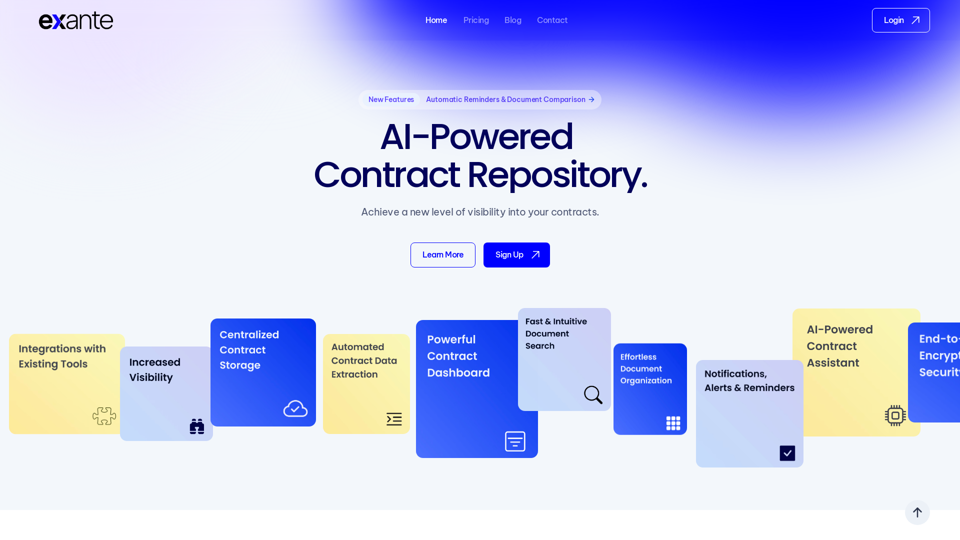

Accelerate Research Work and Knowledge Acquisition by 10x. Seamlessly Integrate AI into Your Research and Work Process

Transcribe audio to text with the Tomedes AI Transcription Tool. Get fast, accurate, and free AI transcription with no sign-up required. Supports file formats including MP3, WAV, MP4, and more.
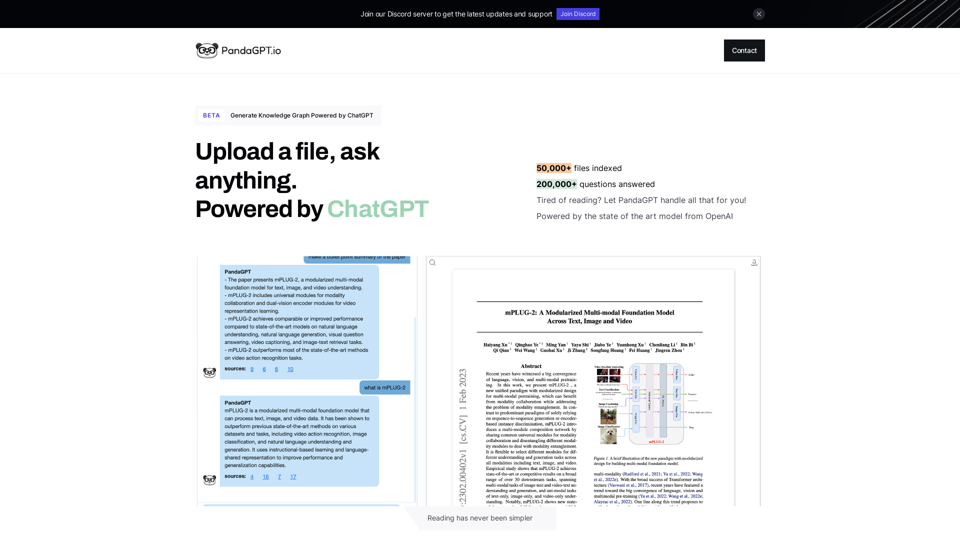
PandaGPT is the easiest way to read files, powered by chatGPT
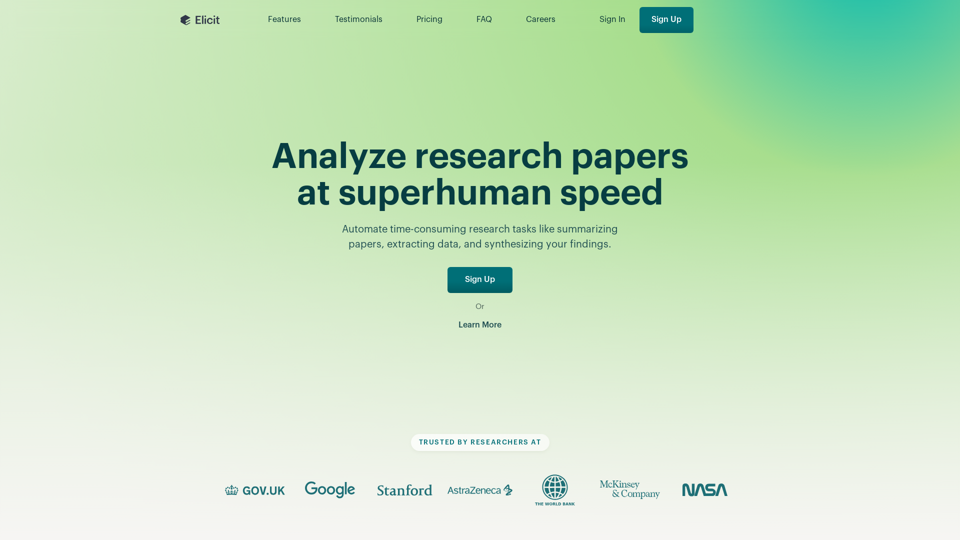
Use AI to search, summarize, extract data from, and chat with over 125 million papers. Used by over 2 million researchers in academia and industry.


Manifestly Checklists - No-code and low-code platform to power your recurring checklists, SOPs, and tasks.
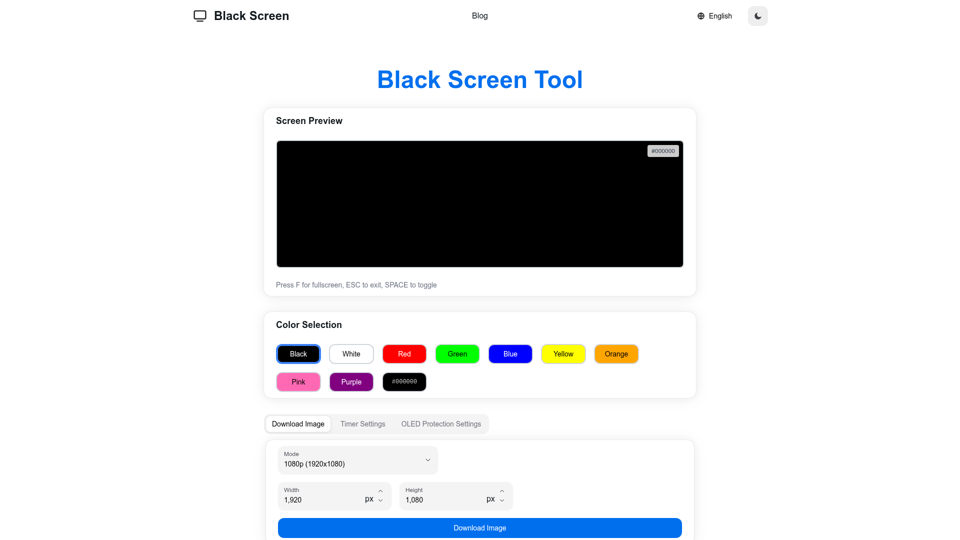
Free Black Screen for fullscreen focus, OLED power saving, and display testing. Use black, white, red, green, and more for pixel checks and downloads.