Viora
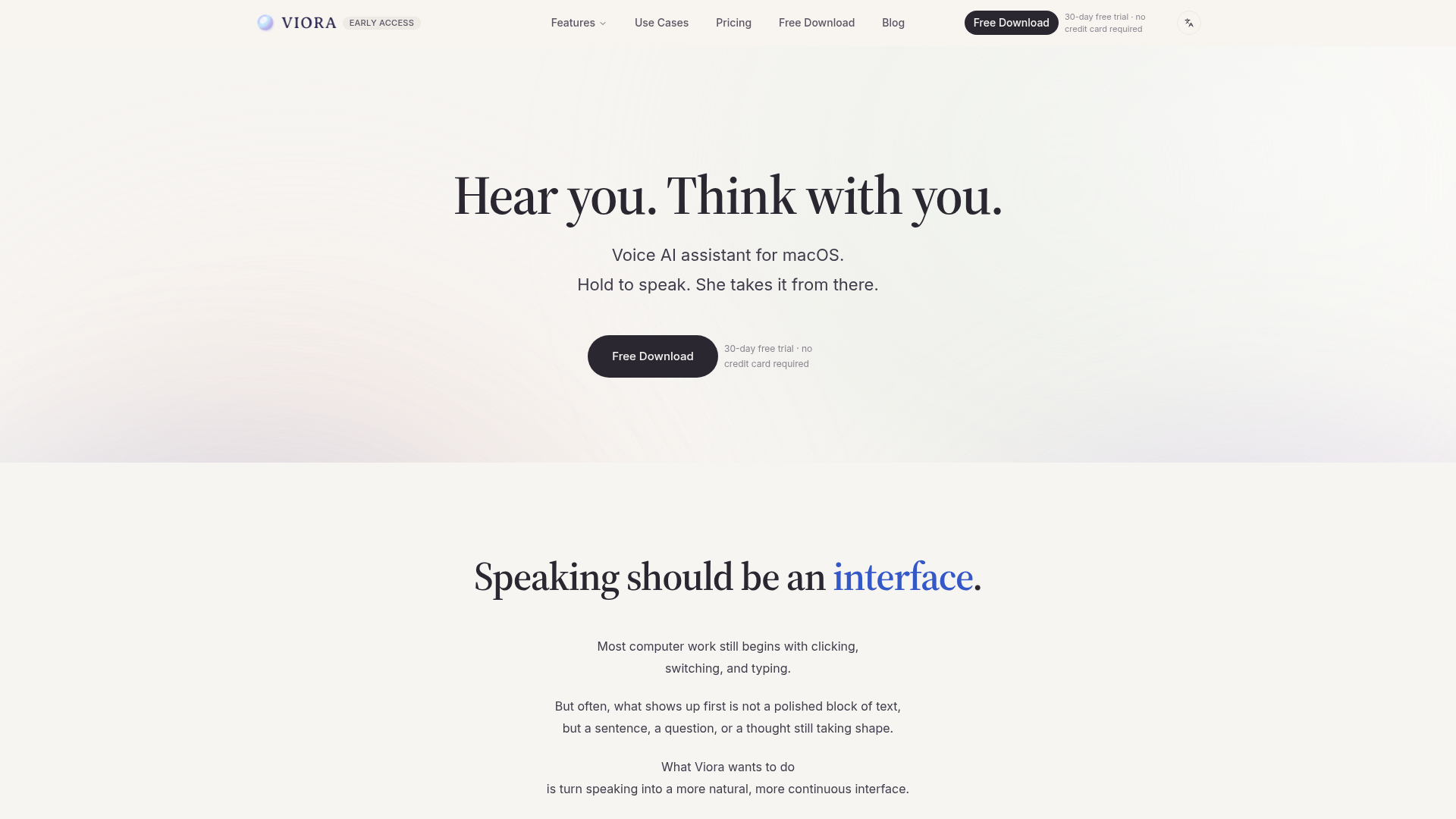
Viora is a macOS voice AI assistant. Hold one shortcut and speak to write in any app, edit selected text, ask about what's on screen, or run agent tasks.
What is Viora?
Viora is a native voice AI assistant designed specifically for macOS. It transforms speaking into a seamless and continuous computer interface, moving beyond traditional interactions that rely on clicking and typing. At its core, Viora is an intelligent layer integrated into your macOS that listens and acts. By simply holding a hotkey and speaking your intent, Viora interprets whether you want to write text, edit content, ask a question, or delegate a task, and executes it directly within the application you're currently using. It aims to make verbal communication the primary and most natural method of interacting with your computer.
What are the main features of Viora?
Viora is packed with powerful features designed to enhance productivity through voice:
- Intent-Based Action Routing
- Viora intelligently understands the context of your speech. A single spoken command can trigger different actions:
- Write: Speak directly into any text input field across macOS. Viora converts your speech into accurately punctuated text, adapting the tone to match the context (e.g., formal in an email, casual in a chat).
- Edit: Simply select any existing text and tell Viora how to change it (e.g., "make this more concise," "rephrase professionally"). It rewrites the selected content on the spot.
- Ask: Highlight a passage of text and ask a question about it. Viora provides the answer in a popover right next to the source, eliminating the need to switch windows or copy-paste.
- Do: Delegate multi-step tasks (e.g., "research competitors' pricing"). Viora breaks it down, executes the steps, and presents the results for your review.
- System-Wide Integration
- Viora is not a separate app you need to open. It resides in the background of macOS, available instantly via a global hotkey in any application you use—whether it's your browser, email client, calendar, or note-taking app. You never have to leave your workflow.
- Persistent Memory & Context
- Viora remembers your previous instructions, preferences, and ongoing tasks. This memory allows it to provide contextually aware assistance. For example, it can generate a personalized daily brief in the morning and offer timely reminders for follow-ups you mentioned.
- Privacy-First Design
- Your voice and data are handled with high priority on privacy. All data is stored securely in the cloud, is never used to train AI models, and you have full control to view, edit, or delete any memory Viora has stored.
How to use Viora?
Using Viora is designed to be intuitive and frictionless:
- Download and Install: Visit the Viora website and download the application for macOS. The installation process is straightforward.
- Start the Free Trial: Launch Viora to begin a 30-day free trial. No credit card is required to start.
- Set Your Hotkey: Configure a system-wide shortcut key (like holding the
Optionkey) that you will use to activate Viora. - Speak and Interact: While working in any app (e.g., Safari, Mail, Slack), press and hold your configured hotkey and speak naturally. Viora will listen, determine your intent (Write, Edit, Ask, Do), and perform the action directly within that app's interface.
- Review and Refine: For tasks and edits, you can review Viora's work before finalizing. Use the memory panel to manage what Viora remembers about your preferences and past conversations.
What is the price of Viora?
Viora offers a ### 30-day free trial with no credit card required, allowing users to experience its full functionality. After the trial period, users can subscribe to a paid plan for continued access. The specific subscription pricing details are available on the Viora website upon download or within the application. The pricing model is designed to be affordable for individual professionals and teams who rely heavily on voice-driven productivity.
Helpful Tips for Using Viora
To get the most out of Viora, consider these tips:
- Be Natural
- Speak to Viora as you would to a human assistant. Use complete sentences like "Draft a polite reply to this email" or "Summarize this paragraph in three bullet points."
- Leverage Context
- The power of Viora grows with use. The more you use it, the better it understands your habits and context, making its suggestions and task execution more personalized.
- Use it Everywhere
- Don't limit Viora to one app. Try using it for writing in your word processor, scheduling in your calendar, researching in your browser, and messaging in chat apps to fully experience its system-wide utility.
- Manage Your Memory
- Periodically check the memory section to review what Viora has stored. You can refine or delete entries to keep its contextual knowledge accurate and relevant to your current needs.
- Explore Task Delegation
- Start with simple multi-step tasks ("Find and summarize three recent articles about AI ethics") to see how Viora breaks down and executes work, then gradually delegate more complex workflows.
Frequently Asked Questions about Viora
What is Viora for?
Viora is a voice AI assistant for macOS designed to make speaking a primary computer interface. It allows you to write, edit, ask questions, and delegate tasks using just your voice, directly within any application you are using.
Does Viora work in any app?
Yes, Viora is designed as a system-wide utility for macOS. Once installed and running, you can use its voice commands in virtually any application that supports text input, including web browsers, email clients, office suites, and communication tools.
Is it only dictation?
No, Viora is much more than simple speech-to-text dictation. While it excels at converting speech to text, its core intelligence lies in understanding intent. It can edit existing text, answer contextual questions, and execute multi-step tasks based on your verbal instructions.
Can I control what Viora remembers?
Absolutely. You have complete control. All memories Viora stores—your instructions, preferences, and task contexts—are accessible in a dedicated panel. You can view, edit, or permanently delete any memory at any time.
What platforms are supported?
Currently, Viora is available exclusively for ### macOS. It is built as a native assistant to integrate deeply with the Mac operating system and its ecosystem of applications. Support for other platforms may be considered in the future.
Viora
Viora is a macOS voice AI assistant. Hold one shortcut and speak to write in any app, edit selected text, ask about what's on screen, or run agent tasks.
 Cloudflare
 HTTP/3
 Next.js
 Node.js
 React
React Webpack
 Zeabur
Free AI anime and manga generator. Turn text into anime episodes, manga, comics, webtoons and comic shorts in any art style — no drawing or animation skills needed.
Translate image text across 70+ languages with our advanced AI Image Translator to help you better expand your products globally to various countries
Advertised Here
Reach thousands of visitors daily. Get your spot now!
Tools similar to Viora
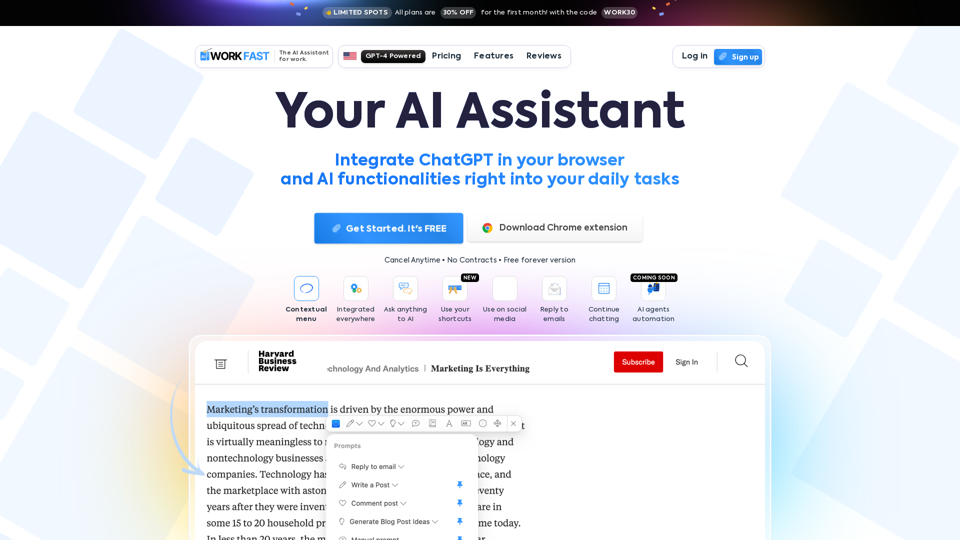
Work Fast is a AI Chrome extension assistant. Work Fast is powered by GPT-4 AI.
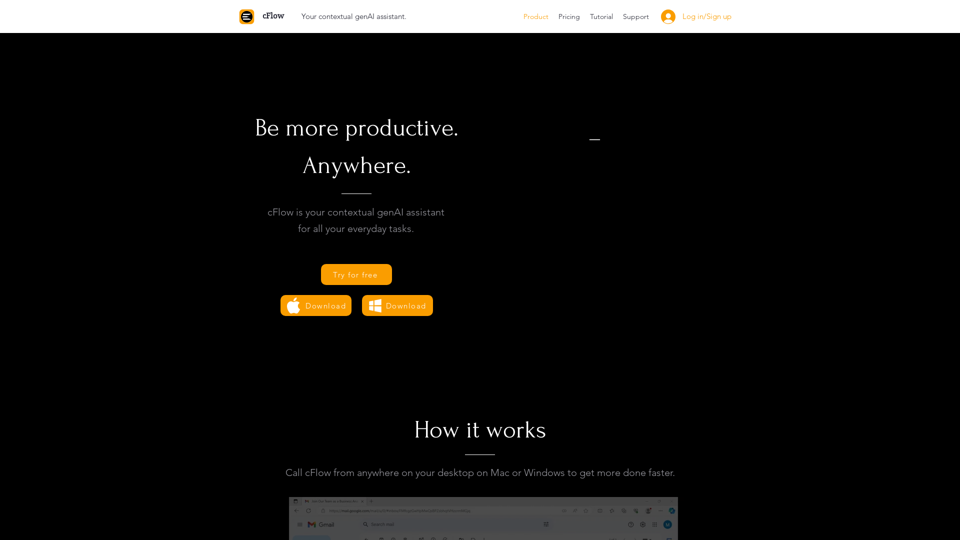
cFlow is your contextual generative AI assistant for all your everyday tasks from research, text-editing, note-taking, scheduling and more. cFlow provides LLM-native, seamless knowledge access across your desktop devices.

A suite of Productivity Tools designed to help you be more productive and efficient.
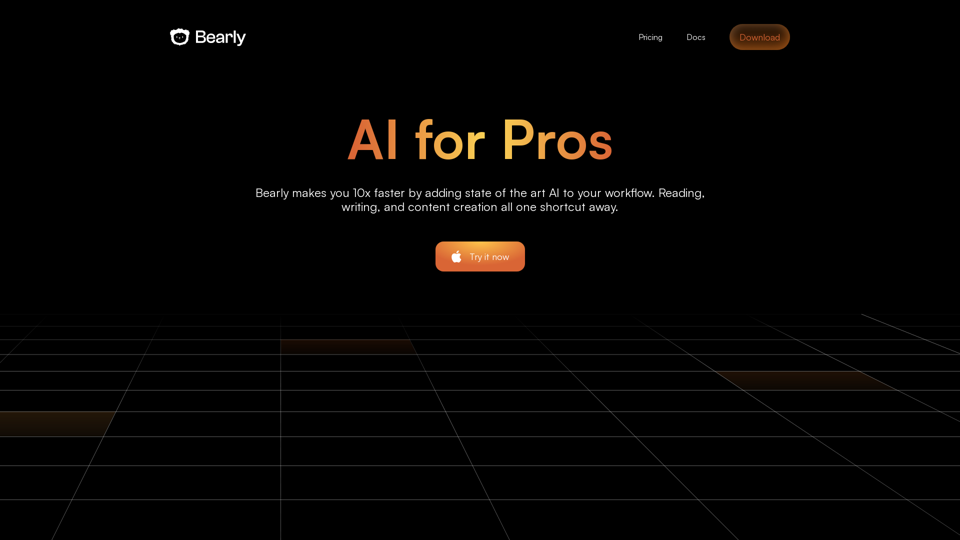
Read, write, and learn faster with the world best AI accessible with a hotkey directly on your desktop. Available for Mac, Windows & Linux.
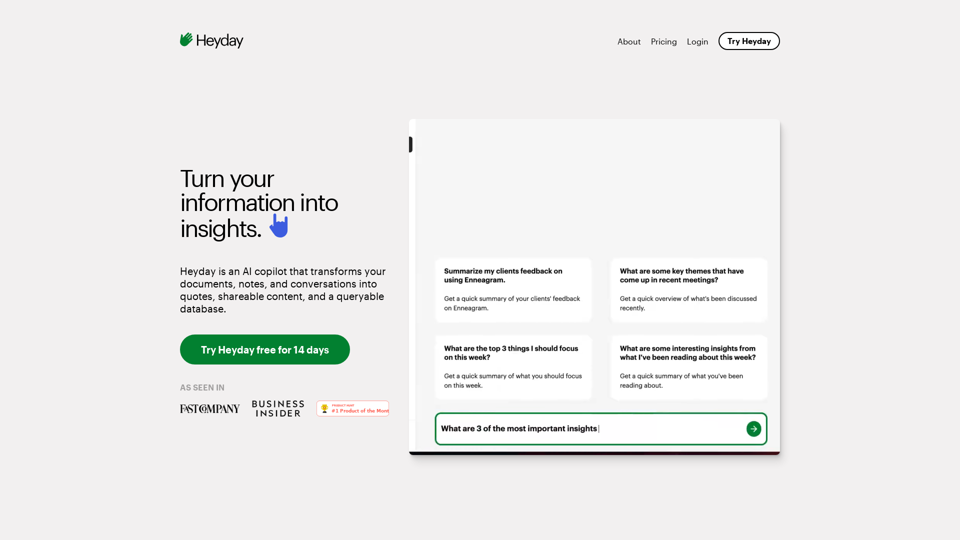
Heyday is an AI copilot that transforms your documents, notes, and conversations into quotes, shareable content, and a queryable database.
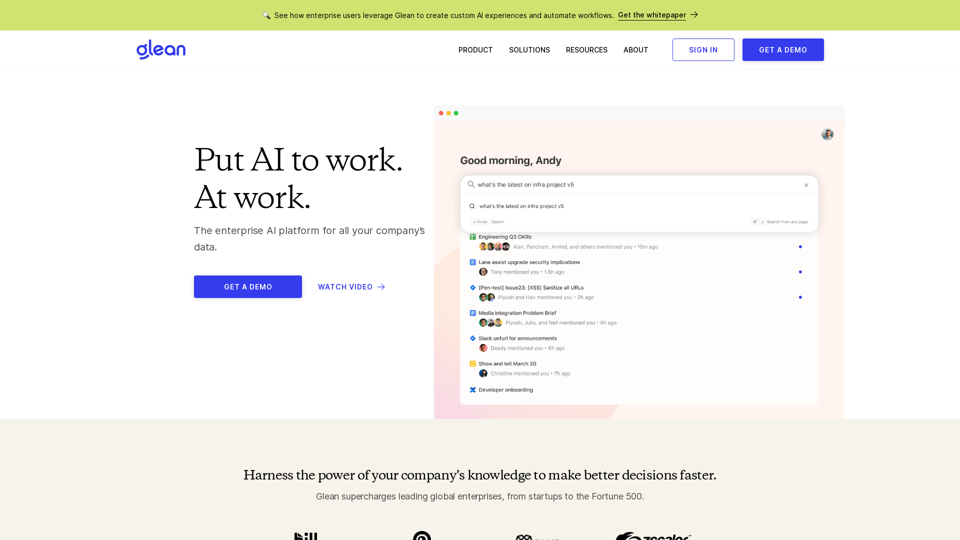
Glean is the AI assistant platform that uses its state-of-the-art search and RAG technology to generate the answers you need.
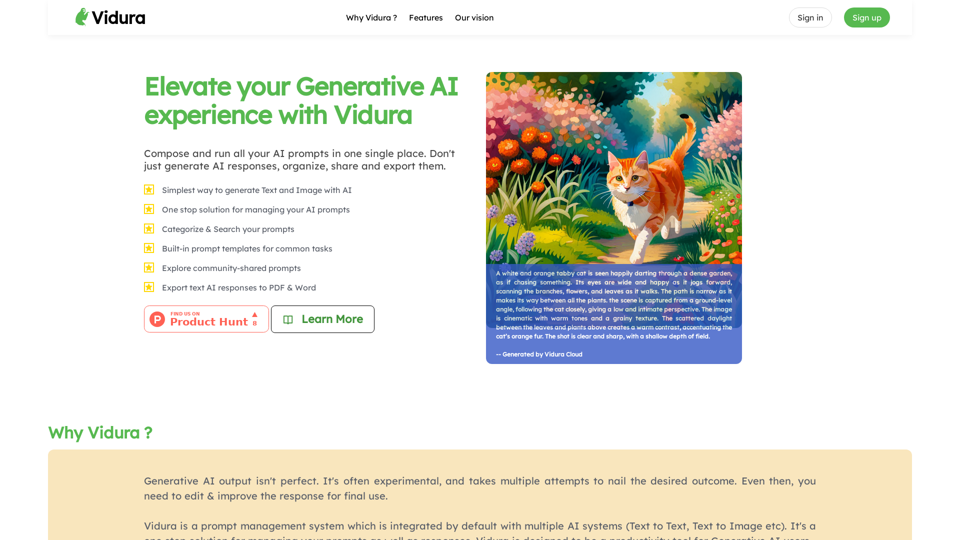
Welcome to Vidura AI, an AI prompt management system for Generative AI. Create, run, and modify prompts and their responses in one single place.
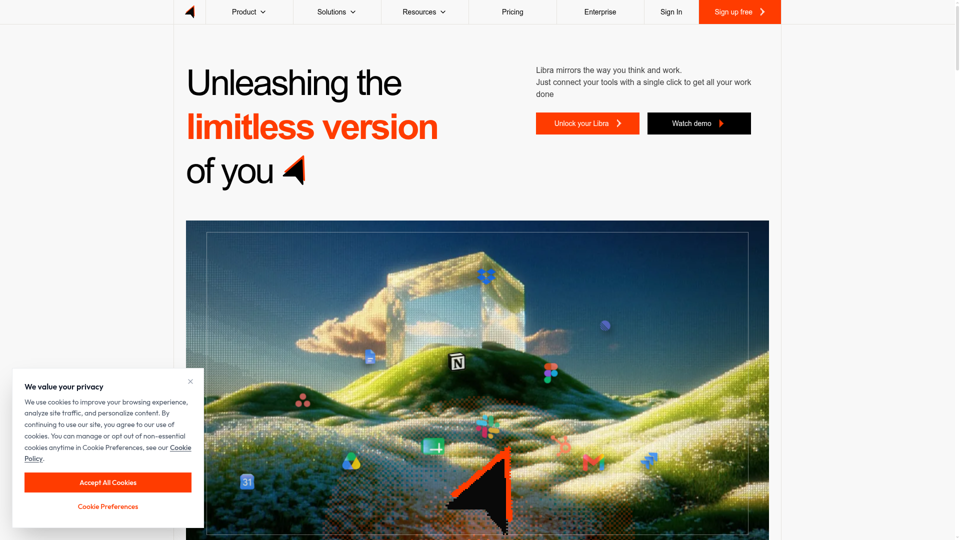
Libra connects Slack, Gmail and your calendar, turning every message, meeting and ticket into one company memory, then runs agents across it. Scale to the team.