PipeVoice
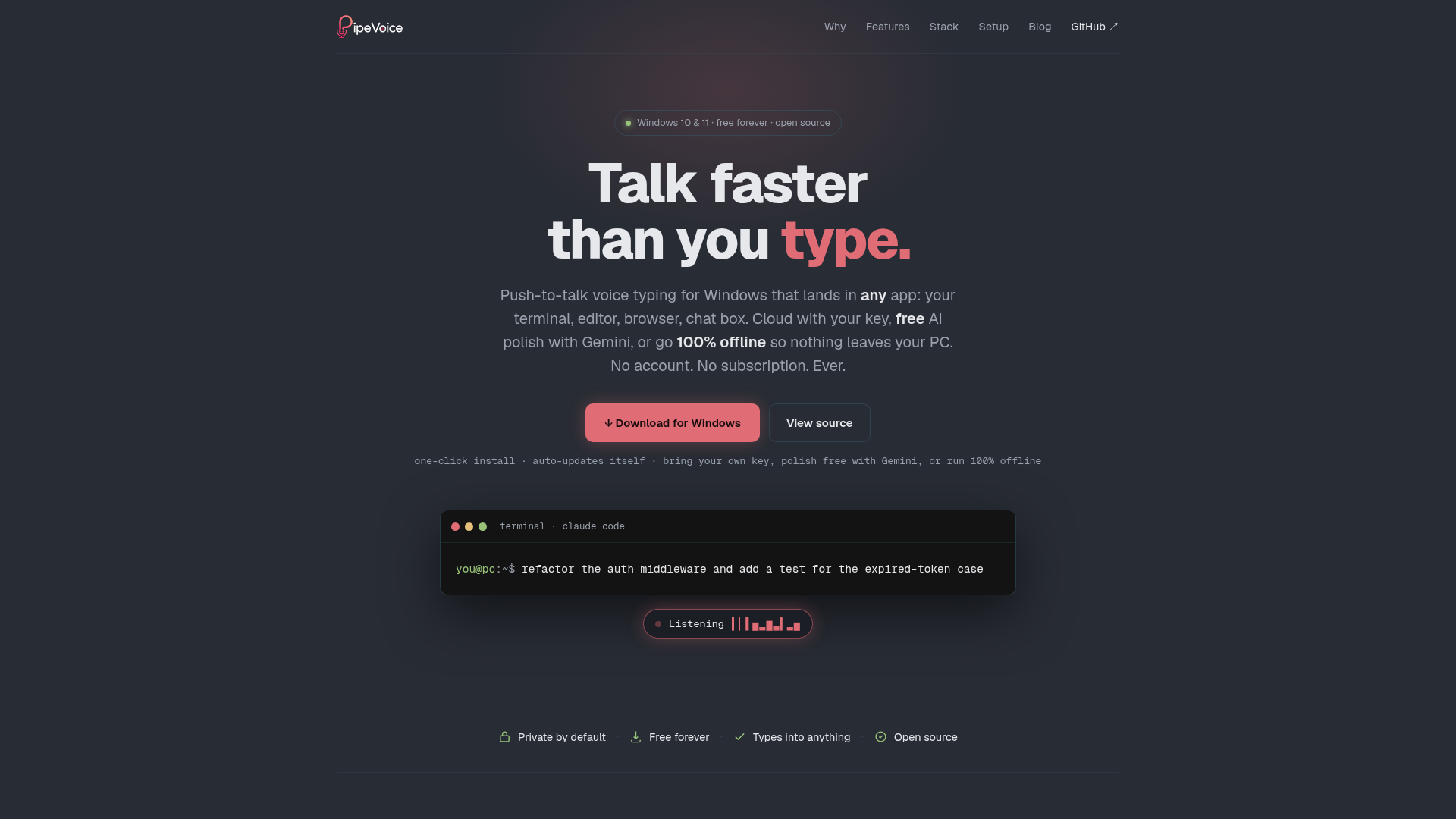
Push-to-talk voice typing for Windows. Hold a key, talk, release, and your words type into any app: terminal, editor, browser. Three transcription engines plus four AI-polish providers, including free Gemini and a 100% offline Local-Whisper-plus-Ollama path. Voice commands, dictation history, silent auto-updates. No telemetry, free forever, open source.
What is PipeVoice?
PipeVoice is a free, privacy-focused, and open-source voice dictation application designed specifically for Windows. It enables users to type into any application by speaking, converting speech into real keystrokes directly where the cursor is located. With support for multiple AI engines and optional text polishing, PipeVoice caters to both cloud-based and fully offline workflows, ensuring flexibility and control over your data.
What are the main features of PipeVoice?
- Private by Default
- Choose fully offline operation with Local Whisper and Ollama, ensuring no data leaves your computer. Even with cloud providers, your audio is sent only to the service you select, never to PipeVoice servers.
- Types into Anything
- Works seamlessly in terminals, editors, browsers, chat boxes, and more, injecting real keystrokes without the need for copy-pasting.
- Open Source and Auditable
- The entire codebase is available on GitHub, allowing users to verify security and functionality.
- Per-App Profiles
- Automatically adjusts settings based on the focused application—ideal for customizing behavior for coding terminals, chat apps, or text editors.
- Dictation History
- Locally stores transcripts on your PC, enabling you to revisit and reuse past dictations without any cloud uploads.
- Accent and Language Support
- Accommodates various English accents (e.g., British, US, Australian) and allows custom speech notes for non-native accents or speech patterns.
- Voice Commands
- Includes commands like "new line," "tab key," "scratch that," and "send it" for hands-free formatting and control.
- Lightweight and Efficient
- Runs as a system tray application without heavy resource usage, built natively for Windows without Electron bloat.
- Self-Updating
- Silently checks for updates, verifies them with SHA-256, and installs new versions without requiring reinstallation.
How to use PipeVoice?
- Installation: Download and run the installer from the official GitHub releases page. PipeVoice will launch and reside in your system tray.
- Configure Connectors: Choose your transcription engine (Deepgram, OpenAI Whisper, or Local Whisper) and optional polish stage (OpenAI, Google Gemini, OpenRouter, or local Ollama). For a fully offline setup, pair Local Whisper with Ollama.
- Set Hotkeys: Use the default hotkey (e.g., Ctrl + ) to dictate directly into focused applications, or a secondary hotkey (e.g., Right Ctrl + Shift) to copy text to your clipboard.
- Customize Per-App Profiles: Define settings for specific applications—such as enabling auto-enter in terminals or polished text in chat apps—through the tray menu.
- Start Dictating: Hold the hotkey, speak your text, and release to have it typed or copied. Utilize voice commands for formatting and submission as needed.
Is PipeVoice free?
Yes, PipeVoice is completely free forever. You can use it at no cost by opting for the fully offline path with Local Whisper and Ollama, or leverage free polishing options like Google Gemini or OpenRouter community models. If you prefer cloud-based services, you can use your own API keys with providers like Deepgram or OpenAI, paying them directly (typically just cents per day). A future Pro version with managed keys may be introduced for convenience, but the core application will remain free.
Helpful tips for using PipeVoice
- Maximize Privacy
- For absolute data security, select Local Whisper for transcription and Ollama for polishing to keep everything on your device.
- Leverage Per-App Profiles
- Set up profiles for frequently used applications to automate behaviors like auto-sending messages in Slack or keeping raw text in coding editors.
- Use Speech Notes
- If you have a unique accent or speech pattern, add descriptive notes (e.g., "native Spanish speaker") to improve AI polish accuracy.
- Explore Voice Commands
- Incorporate commands like "send it" to automatically press Enter after dictation, streamlining workflows in chat or command-line interfaces.
- Monitor Dictation History
- Access the History window from the tray to retrieve past transcripts, useful for referencing or reusing content.
- Stay Updated
- Enable automatic updates to receive the latest features and improvements without manual intervention.
- Experiment with Engines
- Test different transcription and polish combinations to find the optimal balance of speed, accuracy, and cost for your needs.
Frequently Asked Questions about PipeVoice
How does PipeVoice differ from Wispr Flow?
PipeVoice is free, open-source, and built natively for Windows, whereas Wispr Flow is a paid subscription service ($144/year) originally designed for Mac. PipeVoice offers greater flexibility by allowing separate choices for transcription and polishing engines, including fully offline options.
Can PipeVoice work with AI coding tools like Claude Code and Cursor?
Absolutely. PipeVoice types directly into any application, including terminals running Claude Code, Cursor's chat interface, or any editor, enabling voice-driven coding and prompt input.
Is my voice data uploaded to the cloud?
Only if you choose a cloud-based transcription engine like Deepgram or OpenAI Whisper—your audio goes to the provider you select, not to PipeVoice. With Local Whisper, no data is uploaded. The optional polish stage sends only text (not audio) to services like Gemini or OpenAI, and with Ollama, everything stays local.
What should I do if Windows flags PipeVoice as an unrecognized app?
This warning appears because PipeVoice lacks a paid code-signing certificate. To proceed, click "More info" and then "Run anyway." You can review the open-source code on GitHub to verify its safety.
Can I dictate to my clipboard instead of typing directly?
Yes, use the secondary hotkey (configurable in settings) to capture speech and copy the result to your clipboard, ideal for multitasking across windows.
Which transcription engine is best for my needs?
- For real-time streaming: Choose Deepgram.
- For high accuracy: Opt for OpenAI Whisper.
- For offline privacy: Use Local Whisper. Pair with a polish stage based on your preference for cost (free Gemini/OpenRouter) or offline operation (Ollama).
Does PipeVoice support voice commands?
Yes, commands like "new line," "tab key," "scratch that," and "send it" are built-in and can be toggled on or off in settings.
How are past dictations stored and accessed?
All transcripts are saved locally on your PC. Open the History window from the tray to view, re-copy, or clear previous dictations.
Can I customize behavior for different apps?
Yes, through per-app profiles, you can set unique rules for transcription engines, text cleanup, auto-enter, and output type (typing vs. clipboard) for each application.
Is there a version for Mac or Linux?
Currently, PipeVoice is built exclusively for Windows 10 and 11, with no announced plans for other operating systems.
PipeVoice
Push-to-talk voice typing for Windows. Hold a key, talk, release, and your words type into any app: terminal, editor, browser. Three transcription engines plus four AI-polish providers, including free Gemini and a 100% offline Local-Whisper-plus-Ollama path. Voice commands, dictation history, silent auto-updates. No telemetry, free forever, open source.
 Vercel
 YouTube
Free AI anime and manga generator. Turn text into anime episodes, manga, comics, webtoons and comic shorts in any art style — no drawing or animation skills needed.
Translate image text across 70+ languages with our advanced AI Image Translator to help you better expand your products globally to various countries
Advertised Here
Reach thousands of visitors daily. Get your spot now!
Tools similar to PipeVoice
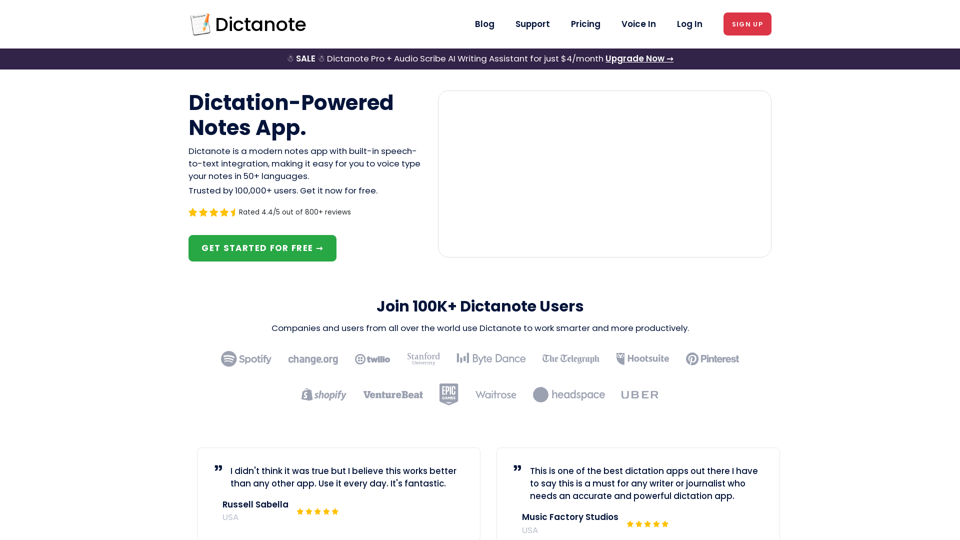
Switch effortlessly between using the keyboard and your voice to type out notes. Work smarter and more productively with fast, accurate dictation and transcription.
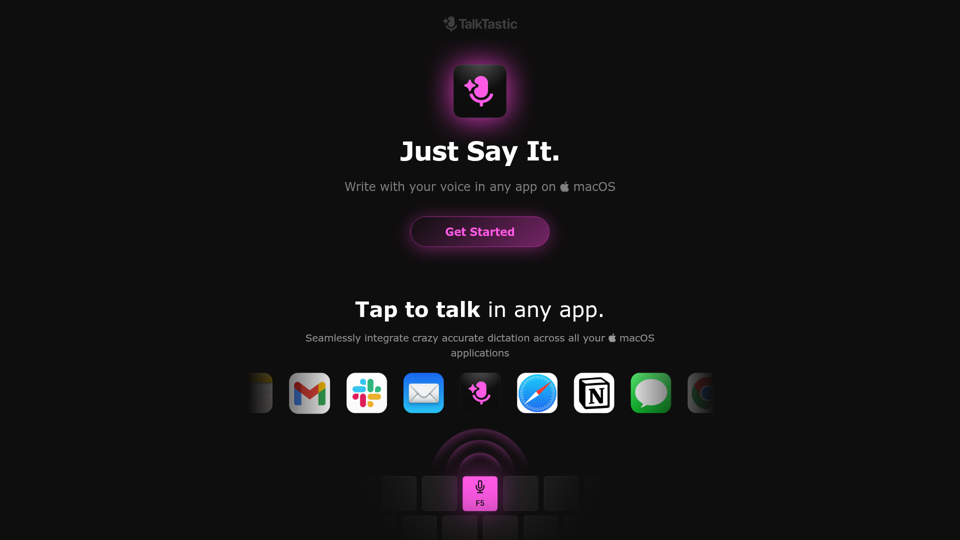
Write with your voice in any app on macOS. Faster and more accurate than ChatGPT, Google and OpenAI Whisper. Start talking. Stop typing., TalkTastic empowers you to write with your voice in any app on macOS. Faster and more accurate than ChatGPT, Google and OpenAI Whisper. Start talking. Stop typing.
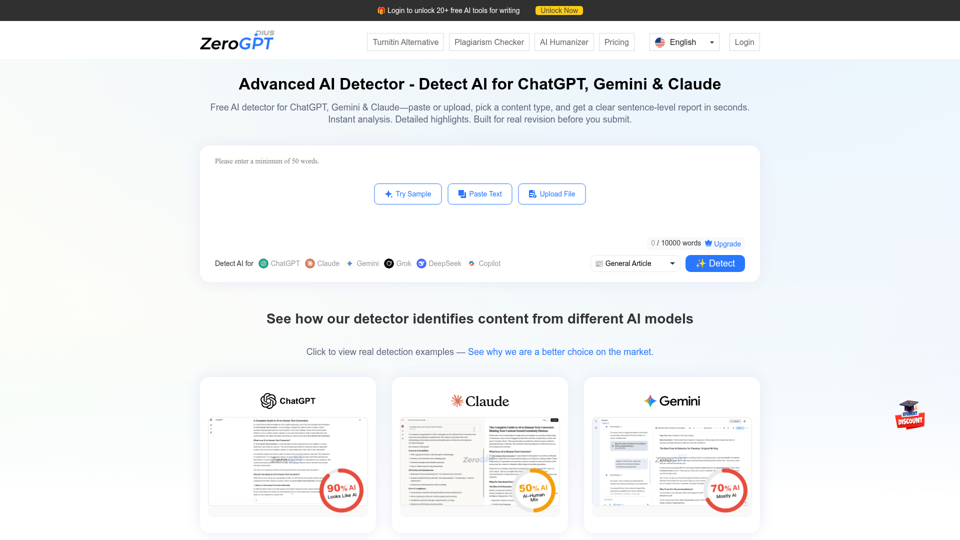
Check text for AI writing from ChatGPT, Gemini, and Claude. Paste or upload a draft, pick a content type, and get a sentence-level report in seconds—free to start.
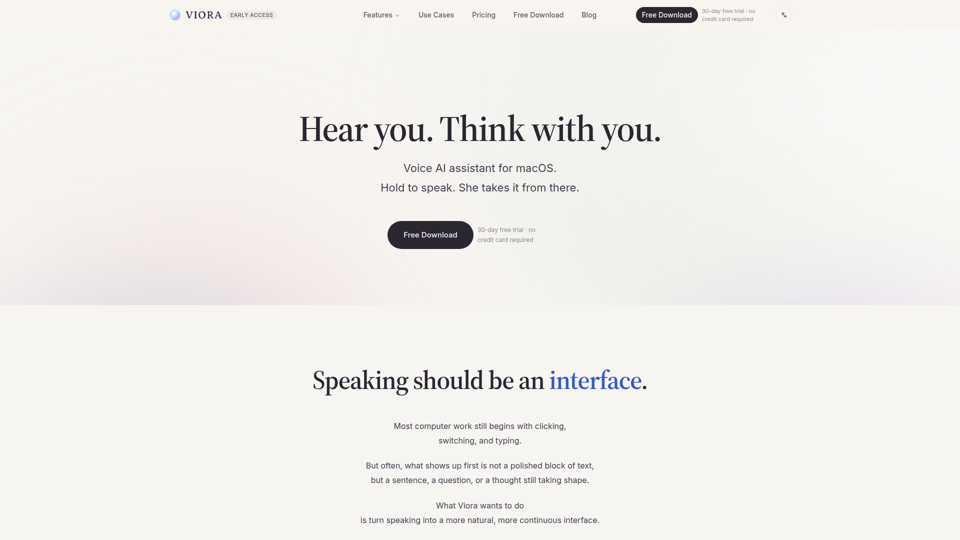
Viora is a macOS voice AI assistant. Hold one shortcut and speak to write in any app, edit selected text, ask about what's on screen, or run agent tasks.
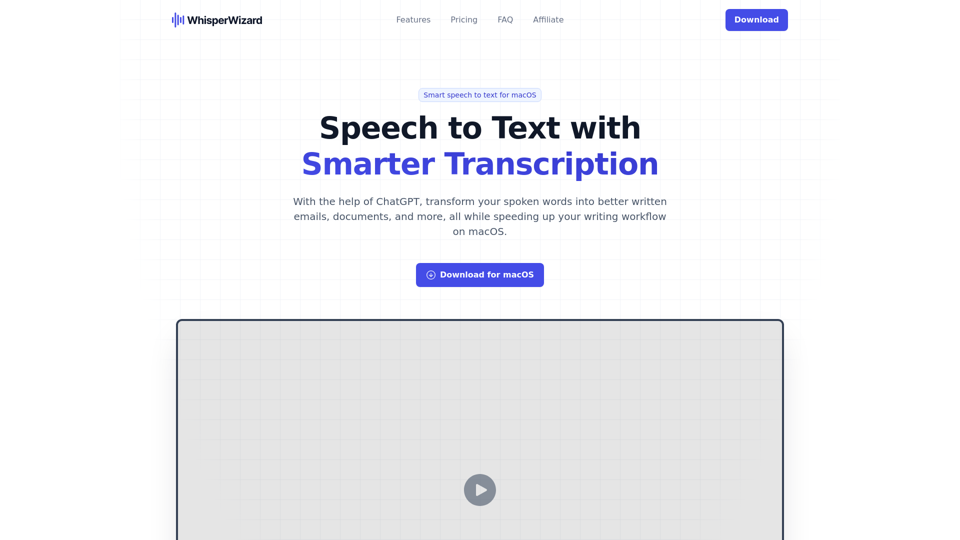
With the help of ChatGPT, transform your spoken words into better written emails, documents, and more, all while speeding up your writing workflow on macOS.

Voice commands and shortcuts for the browser. Eat in front of your computer while controlling it via voice. Great for those with motor issues (parkinson's, arthritis, RSI etc.).
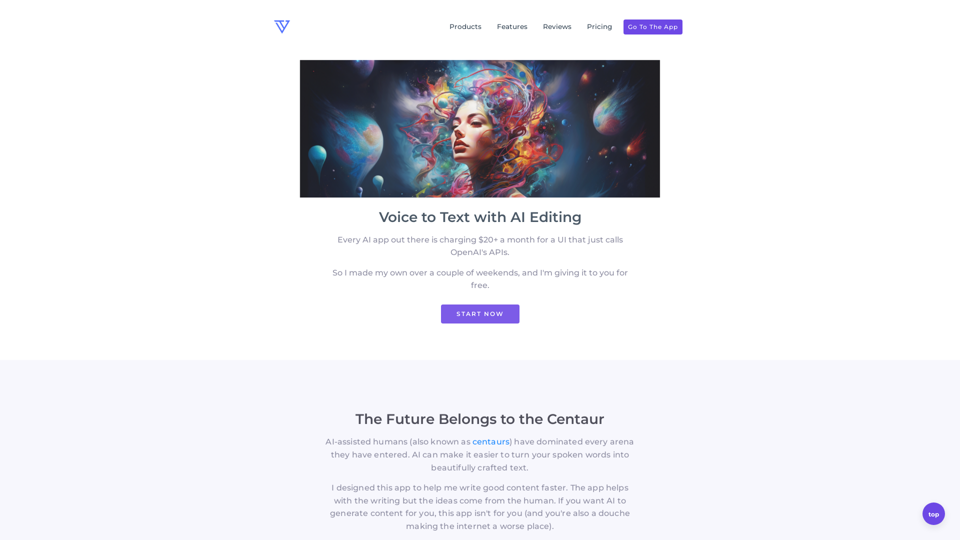
I was tired of companies charging so much money for a UI wrapping ChatGPT. So I made my own and it's free.