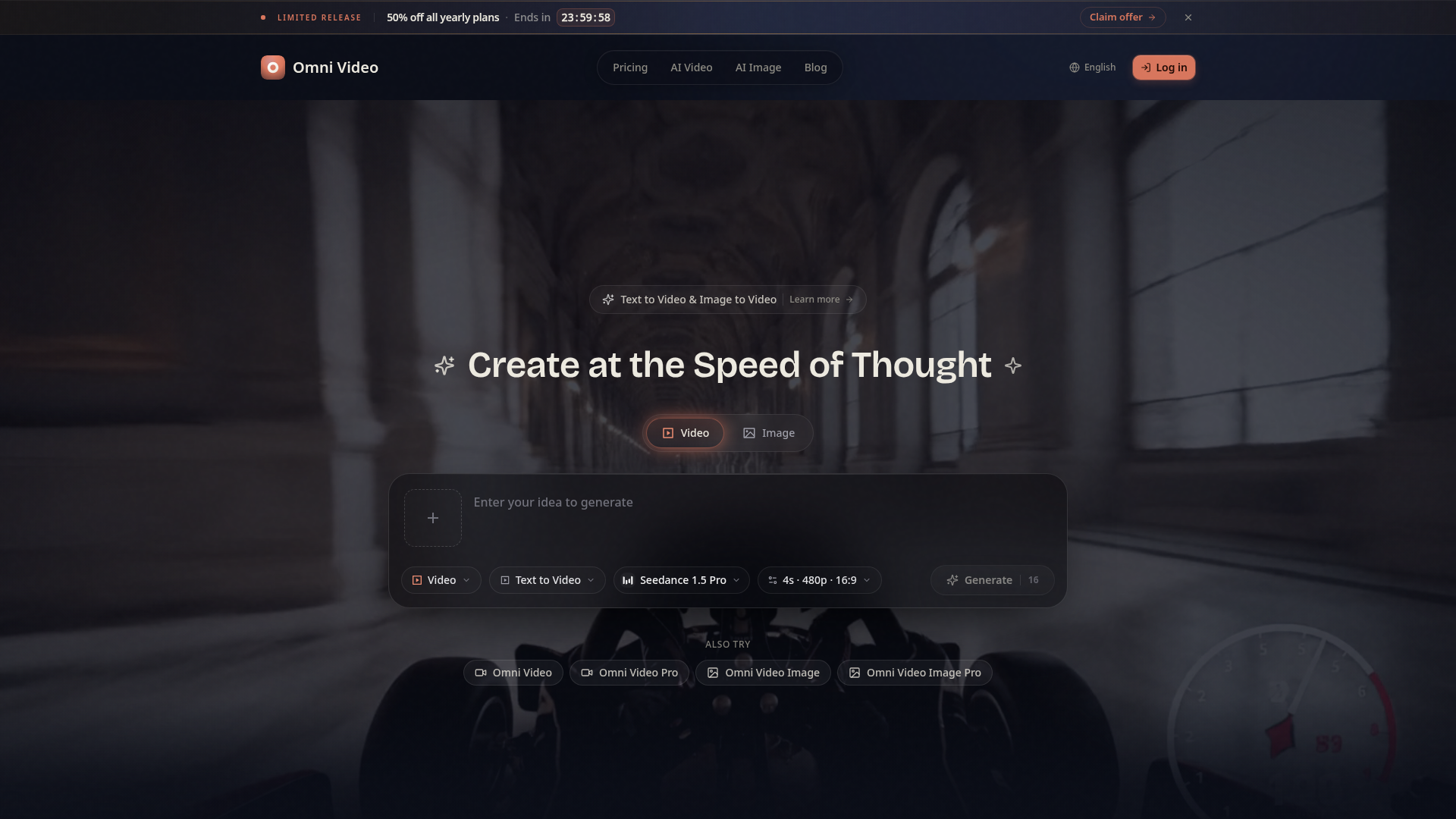
What is Omni Video?
Omni Video is an advanced, AI-powered platform designed for both text-to-video and image-to-video generation. It allows users to transform written prompts or uploaded reference images into short, dynamic video clips. Built with creators in mind, it integrates cutting-edge AI models like Seedance 1.5 Pro and Nano Banana to streamline video production, making it accessible for drafting social media content, marketing campaigns, product showcases, educational explainers, and visual storytelling. By simplifying the video creation process, Omni Video empowers users to produce professional-quality videos without the need for extensive filming or editing resources.
What is the Main Feature of Omni Video?
Omni Video distinguishes itself through its comprehensive and user-centric features tailored for modern video creation:
- Dual-Mode Generation
- Seamlessly switch between text-to-video and image-to-video workflows. Describe a scene in natural language or animate an existing image by describing its motion.
- Extensive Creative Controls
- Users have precise control over the output, including style selection (cinematic, anime, realistic, artistic, minimalist), aspect ratio (landscape 16:9, portrait 9:16, square 1:1), and duration settings.
- High-Quality AI Models
- Leverages state-of-the-art models such as Seedance 1.5 Pro and Nano Banana Pro for generating high-definition (HD, 4K, up to 8K) videos with accurate motion and visual detail.
- Workflow-Oriented Design
- The platform is built for specific creator workflows, enabling rapid prototyping of social clips, campaign visuals, product videos, game trailers, and music visuals.
- Generous Free Tier
- Offers daily free credits, allowing new users to explore and test the platform's capabilities without an initial financial commitment.
How to Use Omni Video?
Using Omni Video is a straightforward process designed for efficiency:
- Access the Platform: Visit the Omni Video website and navigate to the creation dashboard.
- Choose Your Input Method:
- For Text-to-Video: Click on the "Text to Video" option. Enter a detailed, descriptive prompt of the scene you wish to generate.
- For Image-to-Video: Click on the "Image to Video" option. Upload a reference image (JPEG, PNG) and then describe how elements within the image should move or animate.
- Customize Your Settings: Select your desired visual style from the available presets. Choose the aspect ratio suitable for your target platform (e.g., YouTube, TikTok, Instagram). Set the desired duration for your clip.
- Generate and Preview: Click the "Generate" button. The AI will process your request and create a preview of your video. You can review it directly on the platform.
- Export and Share: Once satisfied with the generated clip, download it in your preferred resolution or use the built-in sharing options to publish it directly.
What is the Price of Omni Video?
Omni Video operates on a flexible credit-based pricing model, catering to users with different levels of needs.
- Free Plan
- Offers 5 credits per day (requires login). This plan provides access to standard AI models and HD resolution, perfect for testing and light usage.
- Basic Plan
- Priced at approximately $19.50/month when billed yearly (currently 50% off). It includes 400 credits per month, HD resolution, and email support.
- Pro Plan (Most Popular)
- Priced at approximately $39.50/month when billed yearly. It offers 1,000 credits per month, access to all AI models, HD & 4K resolution, and priority queue access.
- Max Plan
- Priced at approximately $74.50/month when billed yearly. It is designed for high-volume creators, providing 2,300 credits per month, 4K & 8K resolution, and full API access with dedicated support.
Subscribing to an annual plan offers significant savings. Users can start with the free tier and upgrade as their video generation needs grow.
Helpful Tips for Using Omni Video
To maximize the quality and effectiveness of videos generated with Omni Video, consider these tips:
- Craft Detailed Prompts
- For text-to-video, the more descriptive and specific your prompt is regarding the scene, actions, lighting, and mood, the better the AI can interpret and generate your vision.
- Use High-Quality Reference Images
- When using image-to-video, upload clear, high-resolution images. The AI uses this as a visual foundation, so better input leads to more coherent animation.
- Experiment with Styles
- Don't hesitate to try different style presets. The "cinematic" style might suit a brand trailer, while "anime" could be perfect for a creative short.
- Leverage Aspect Ratios
- Generate multiple aspect ratios from the same prompt to create content tailored for different social media platforms simultaneously, optimizing your workflow.
- Utilize Free Credits Wisely
- Use your daily free credits to experiment with different prompts and settings. This helps you understand the platform's capabilities before committing to a subscription.
- Start Simple
- Begin with shorter durations and straightforward concepts to gauge the AI's performance, then gradually increase complexity.
- Check the Community and Support
- For advanced techniques or troubleshooting, explore community forums or reach out to Omni Video's dedicated support team.
Frequently Asked Questions about Omni Video
What is Omni Video?
Omni Video is an AI-powered generator that creates short videos from text descriptions or reference images. It's designed for creators, marketers, and businesses to produce video content quickly and efficiently.
Can I create Image to Video clips?
Absolutely. Omni Video's core feature is image-to-video generation. You can upload any reference image and instruct the AI on how elements within that image should move, transforming static pictures into animated clips.
What styles does Omni Video support?
The platform offers a variety of style presets to match your project's tone, including Cinematic, Anime, Realistic, Artistic, and Minimalist. Each style applies a distinct visual filter and rendering technique to your generated video.
What aspect ratios and durations are available?
Omni Video supports flexible formats for different platforms: Landscape (16:9) for YouTube, Portrait (9:16) for TikTok/Reels, and Square (1:1) for Instagram posts. You can control the duration of your generated clips, typically creating short videos suitable for social media and ads.
How do I get better video results?
For optimal results, provide clear, detailed prompts when using text-to-video. Use high-quality, well-composed images for image-to-video inputs. Experiment with different style presets and don't be afraid to iterate on your prompts based on the initial outputs. Utilizing the higher-tier plans also grants access to more advanced AI models capable of producing finer details and motion.
Omni Video AI Video Generator
Create cinematic AI videos with Omni Video from text prompts or reference images. Use text-to-video and image-to-video workflows for social clips, ads, education, product stories, and visual ideas.
 Next.js
 Node.js
 React
React Vercel
 Webpack
Free AI anime and manga generator. Turn text into anime episodes, manga, comics, webtoons and comic shorts in any art style — no drawing or animation skills needed.
Translate image text across 70+ languages with our advanced AI Image Translator to help you better expand your products globally to various countries
Advertised Here
Reach thousands of visitors daily. Get your spot now!
Tools similar to Omni Video AI Video Generator
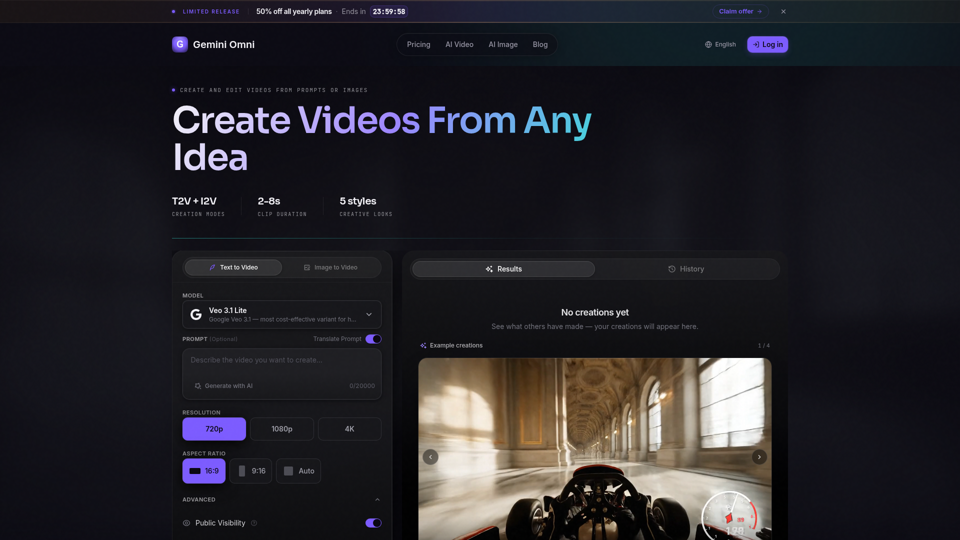
Create AI videos with Gemini Omni from text prompts, images, and reference frames. Generate short clips for social content, ads, product stories, explainers, and visual concepts.
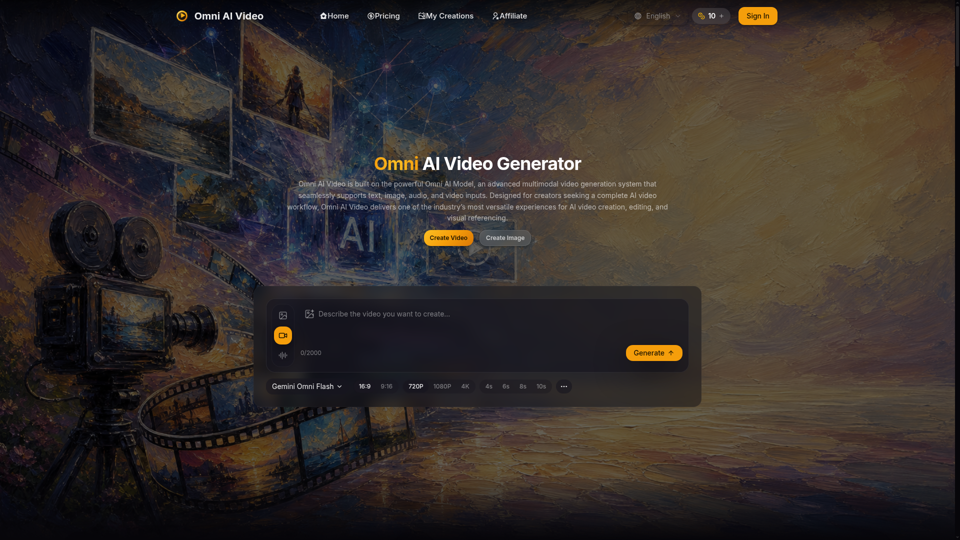
Omni AI Video: multimodal AI video generator powered by Omni AI Model. Supports text, image, audio, and video creation, editing, and reference generation.
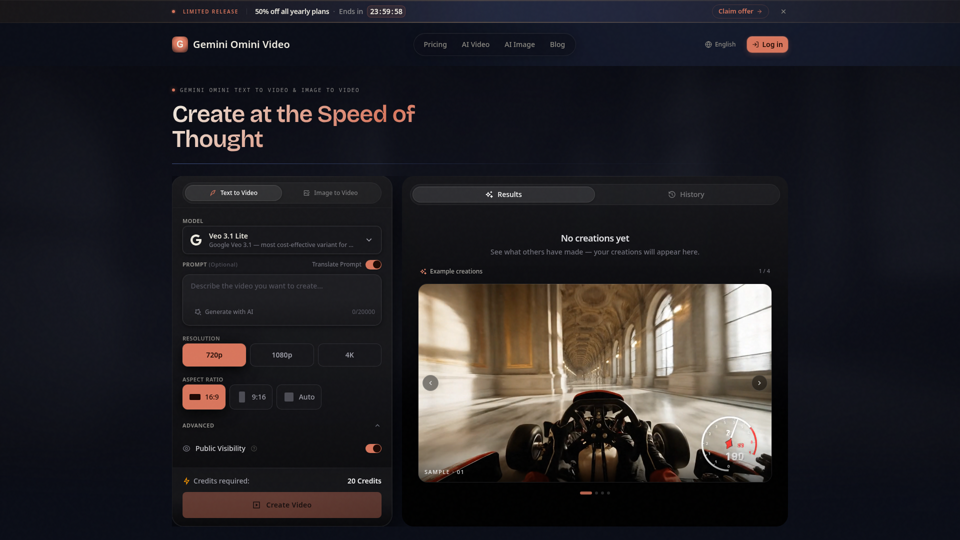
Create Gemini Omini Video clips from text prompts or reference images. Build Gemini Omni-style text-to-video and image-to-video scenes for social clips, ads, education, product stories, and visual ideas.
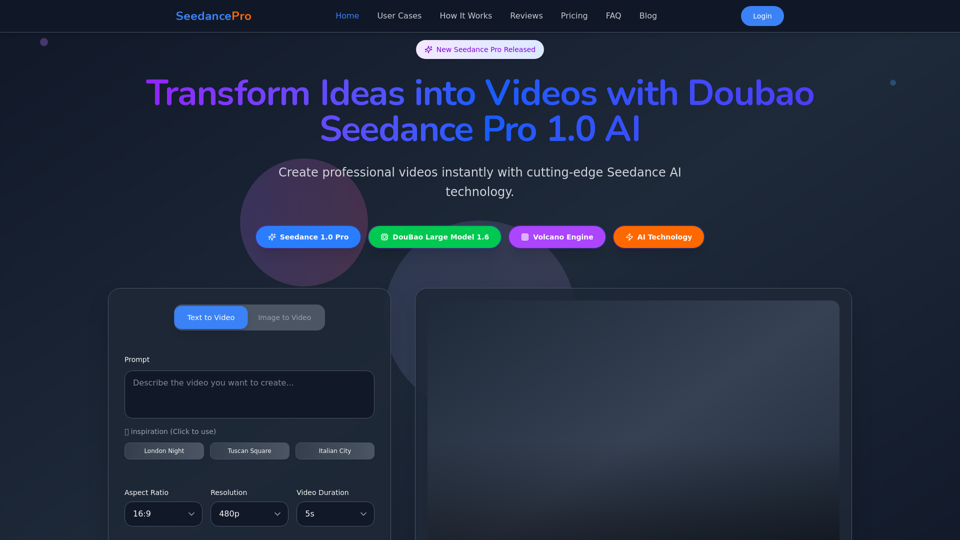
Create stunning videos with Seedance Pro AI video generator. Transform text and images into professional videos effortlessly.
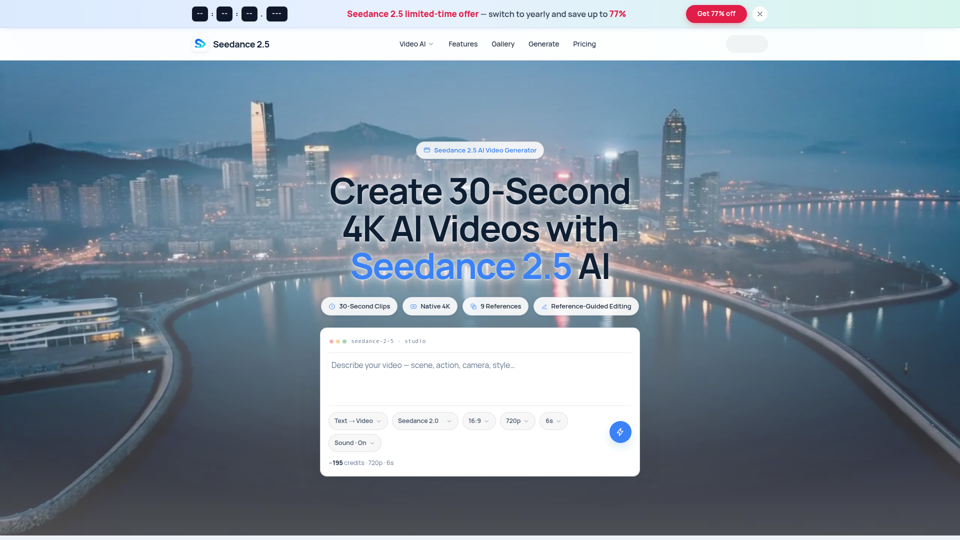
Seedance 2.5 AI turns any text prompt or photo into cinematic, watermark-free 4K video — text-to-video, image-to-video and reference-guided generation.
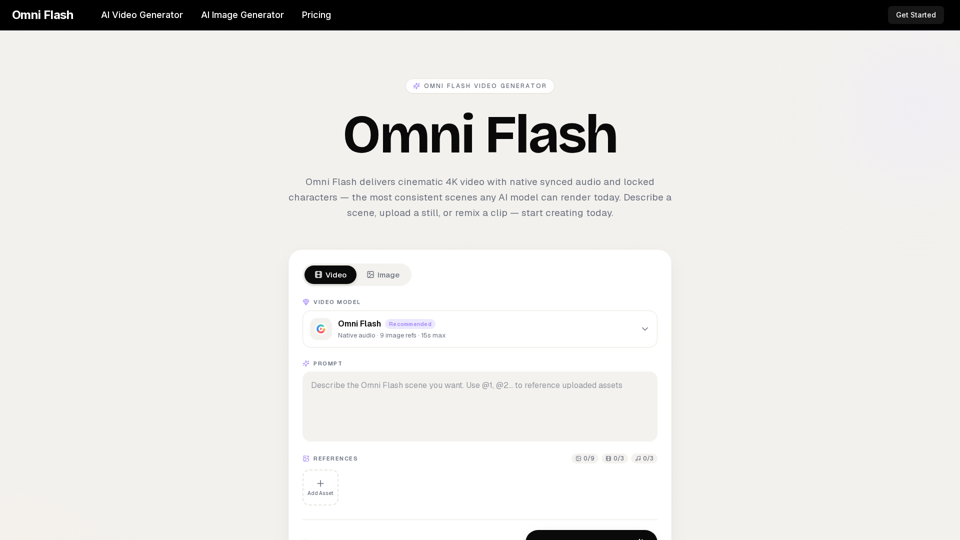
Omni Flash is a free AI video generator that turns text, images, or clips into cinematic 4K video with native synced audio and locked characters. Try free!
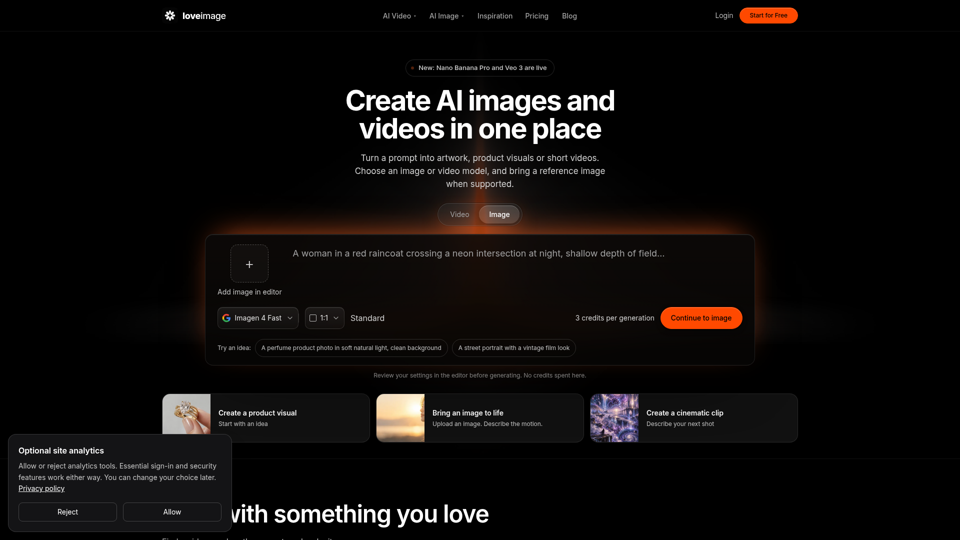
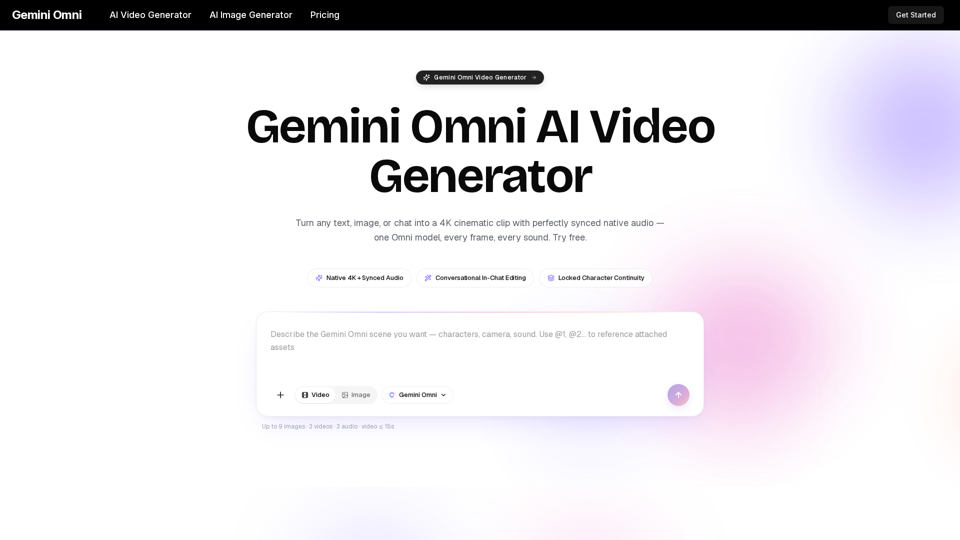
Gemini Omni is a multimodal AI video generator that creates 4K cinematic clips with synchronized native audio from text or chat. Try free!