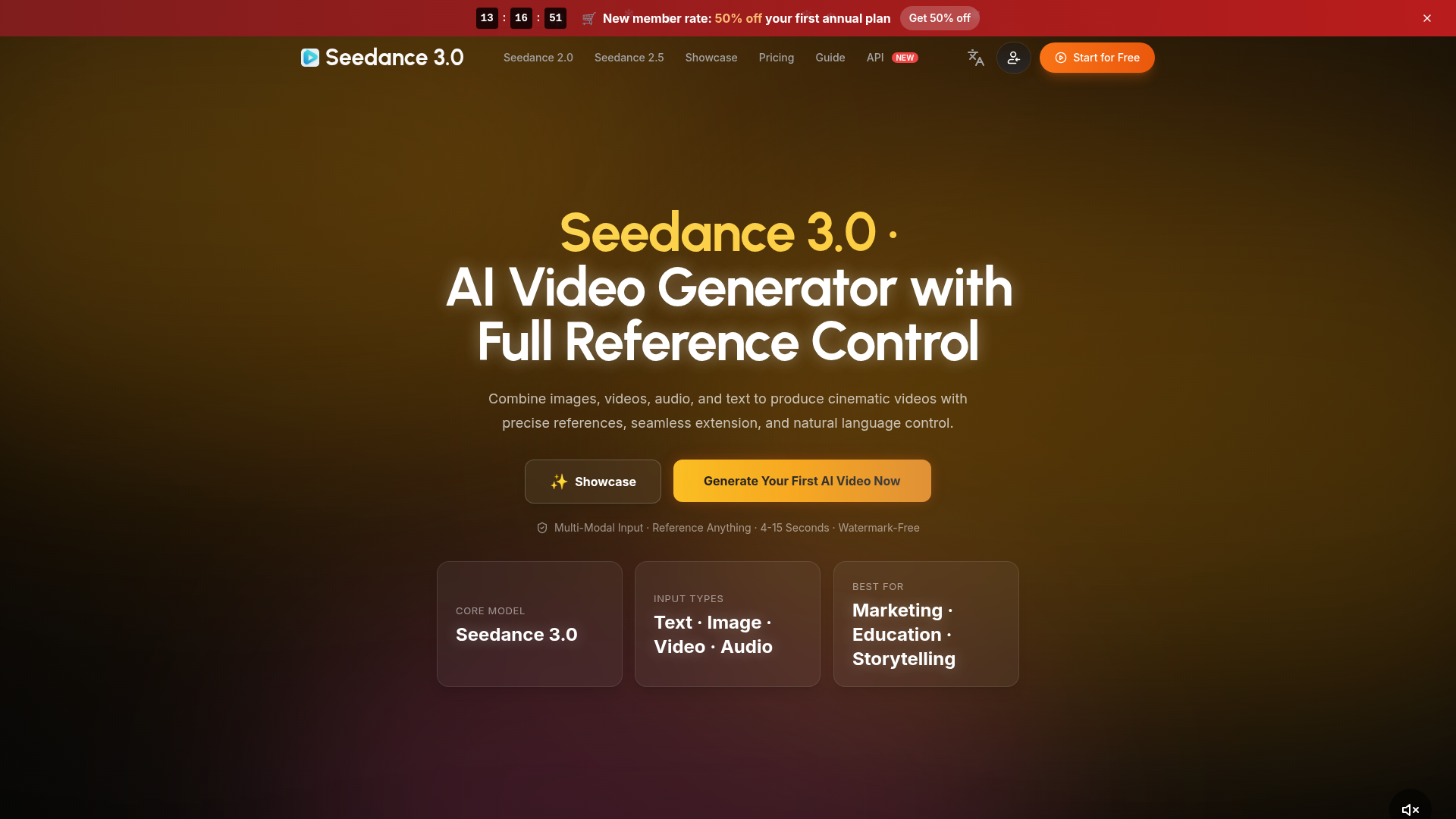
What is Seedance 3.0?
Seedance 3.0 is a state-of-the-art multimodal AI video generator that provides users with full reference control. It allows creators to combine text, images, videos, and audio as inputs to produce cinematic-quality videos up to 30 seconds long. Unlike traditional AI video tools that rely on a single, complex text prompt, Seedance 3.0 is built on the principle of "reference-led direction." You can provide specific visual and auditory references for different aspects of your scene—such as a character's appearance, a product's design, a camera movement style, or a background soundtrack—and then use a text prompt to describe the subject, action, mood, and camera work you desire. This modular approach gives you unprecedented precision and creative control, making it ideal for professional applications in marketing, storytelling, education, and campaign pre-visualization. The platform outputs videos in native 4K resolution, ensuring high-quality, watermark-free results suitable for commercial use.
What is the Main Feature of Seedance 3.0?
The core feature of Seedance 3.0 is its ### multimodal workspace with full reference control. This powerful capability is broken down into several key advantages:
- Extended Single-Generation Length
- Create cohesive video scenes up to ### 30 seconds in a single generation. This allows for a complete narrative arc—including setup, main action, transitions, and a closing beat—without needing to stitch multiple short clips together.
- Massive Reference Capacity
- Upload up to ### 50 reference materials in one scene. This includes 30 images, 10 videos, and 10 audio files. This depth lets you assign distinct roles to each reference (e.g., one set of images for character design, a video for camera motion, and an audio file for rhythm), drastically reducing guesswork and improving consistency.
- Reference-Led Creative Direction
- Instead of writing an impossibly long and detailed text prompt, you can "point" the AI to your references. Simply tell it to adopt the lighting from one image, the camera move from one video, and the character from another set of photos. This makes the creative process more intuitive and efficient.
- Native 4K Output
- Generate videos in stunning native 4K resolution. This is critical for professional work where detail is paramount, such as product close-ups, text on packaging, fabric textures, and cinematic framing that must survive client review.
- Consistency Across Shots
- By using dedicated reference groups for characters, products, or visual styles, you can maintain remarkable consistency across different shots or scenes, making your output feel like a unified project rather than a collection of disjointed clips.
- 3D Spatial Pre-Visualization
- The model supports advanced planning for camera blocking and spatial composition. This is invaluable for filmmakers and animators who need to plan subject placement, camera paths, and movement direction before a physical shoot or full production begins.
How to Use Seedance 3.0?
Creating AI videos with Seedance 3.0 is a structured, three-step process designed to leverage its multimodal strengths:
- Plan Your Output: Before you start, decide where your video will be published and what its purpose is. A TikTok hook, a product demo for Amazon, and a brand film each require different aspect ratios, pacing, and levels of detail. Settling on the final format first guides all subsequent creative decisions.
- Prepare and Assign Your References: This is the most crucial step. Gather your source materials—images, videos, audio—and give each one a specific job. For example:
- Use ### Image Set A to define your character's appearance and wardrobe.
- Use ### Video B to demonstrate the desired camera movement (e.g., a slow dolly in).
- Use ### Audio File C to set the soundtrack, rhythm, or dialogue timing.
- Use ### Image Set D to establish the lighting mood and color palette. Separating references in this way provides the AI with clear, unambiguous guidance.
- Craft Your Text Prompt: In the workspace, write your scene prompt in a logical order. Structure it to describe:
- Subject: Who or what is in the scene.
- Setting/Environment: Where the action takes place.
- Action: What is happening.
- Camera & Movement: Shot type (close-up, wide), camera motion (pan, push-in).
- Lighting & Mood: The visual tone and atmosphere.
- Sound Direction: Reference any uploaded audio. You can then generate your video. The platform uses a credit system; each generation consumes a set number of credits based on length and resolution.
What is the Price of Seedance 3.0?
Seedance 3.0 operates on a credit-based subscription model. Users purchase plans that provide a monthly allotment of credits, which are consumed when generating videos. The cost per generation depends on the video's duration and selected resolution (e.g., 720p, 1080p, 4K). The platform often runs promotional offers, such as a ### 50% discount on the first annual subscription plan. For detailed, up-to-date pricing on monthly and annual plans, visit the official Seedance pricing page.
Helpful Tips for Using Seedance 3.0
- Reference Quality is Key
- Use high-quality, clear reference images and videos. The AI learns from what you provide, so blurry or poorly lit references will yield less optimal results.
- Start Simple
- For your first project, use just 1-2 image references and a concise text prompt to understand how the model interprets your inputs before scaling up to complex, multi-reference scenes.
- Iterate by Changing One Variable
- When refining a video, avoid rewriting the entire prompt. Instead, change one element at a time—swap a reference image, adjust a single line in the prompt about camera movement, or try a different audio track. This helps you clearly identify what each change affects.
- Utilize the Prompt Inspiration Gallery
- Explore the "Prompt Inspiration" and "Get Inspired" sections on the website. They showcase real examples with the prompts and references used, which are excellent learning tools for understanding how to structure effective prompts.
- Check Technical Specs
- Ensure your uploaded video and audio references meet the platform's specifications (e.g., H.264/H.265 codec, 24-60 FPS for video, 2-30 seconds per file) to avoid processing errors.
Frequently Asked Questions About Seedance 3.0
What types of videos is Seedance 3.0 best for?
Seedance 3.0 excels in professional and creative applications requiring control and consistency, such as product demonstration videos, social media hooks (especially for TikTok/Reels), animated character shorts, music video performance clips, marketing campaign pre-visualization, explainer/training videos, and brand identity films.
Can I keep a character's look consistent across multiple videos?
Yes, this is one of Seedance 3.0's major strengths. By creating a dedicated reference group of images that define a character's appearance, wardrobe, and even facial expressions, and then reusing that group in different prompts, you can generate multiple videos where the character remains visually consistent.
How does Seedance 3.0 compare to Seedance 2.0?
Seedance 3.0 is a significant upgrade. Key improvements include longer single generations (30 seconds vs. 4-15 seconds), a much larger reference stack (50 total files vs. 15), native 4K output for superior detail, and enhanced features for scene planning and 3D spatial pre-visualization, offering far greater creative control.
Do I need video editing skills to use Seedance 3.0?
Not necessarily. You can generate complete, polished scenes directly within the platform. However, having basic editing knowledge can be beneficial if you wish to combine multiple AI-generated clips, add text overlays, or perform fine-tuning in external software for a final polish.
What happens if I'm not satisfied with my generated video?
The generation will consume credits, but the iterative workflow is designed for experimentation. You can review the output, adjust your references or prompt based on the result, and generate a new version. The "change one variable at a time" tip is crucial for efficiently improving your results.
Seedance 3.0 AI Video Generator
Create cinematic AI videos with Seedance 3.0. Combine image, video, audio, and text references into connected, production-ready scenes.
 Google Analytics
 Vercel
Free AI anime and manga generator. Turn text into anime episodes, manga, comics, webtoons and comic shorts in any art style — no drawing or animation skills needed.
Translate image text across 70+ languages with our advanced AI Image Translator to help you better expand your products globally to various countries
Advertised Here
Reach thousands of visitors daily. Get your spot now!
Tools similar to Seedance 3.0 AI Video Generator
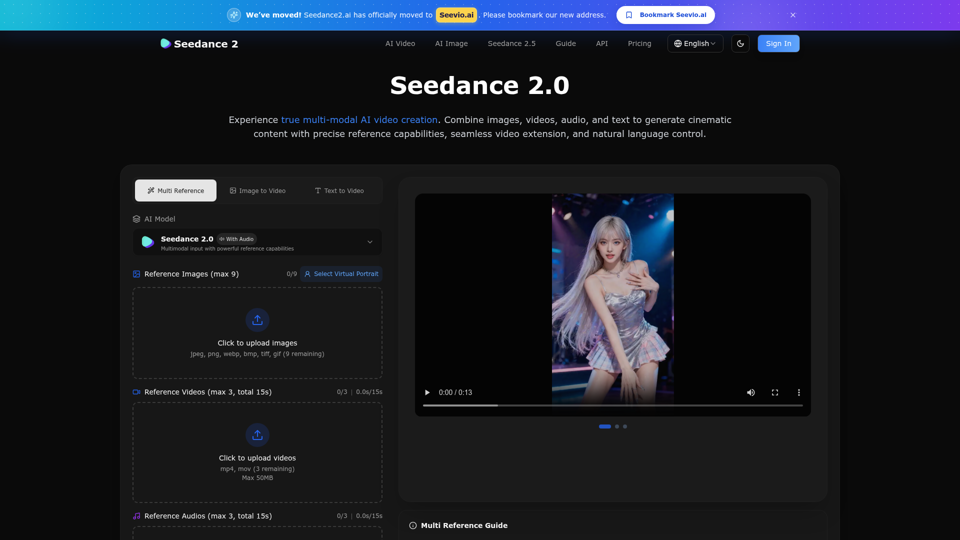
Create stunning AI videos with Seedance 2.0. Transform images and text into cinematic videos with advanced motion synthesis and professional quality.
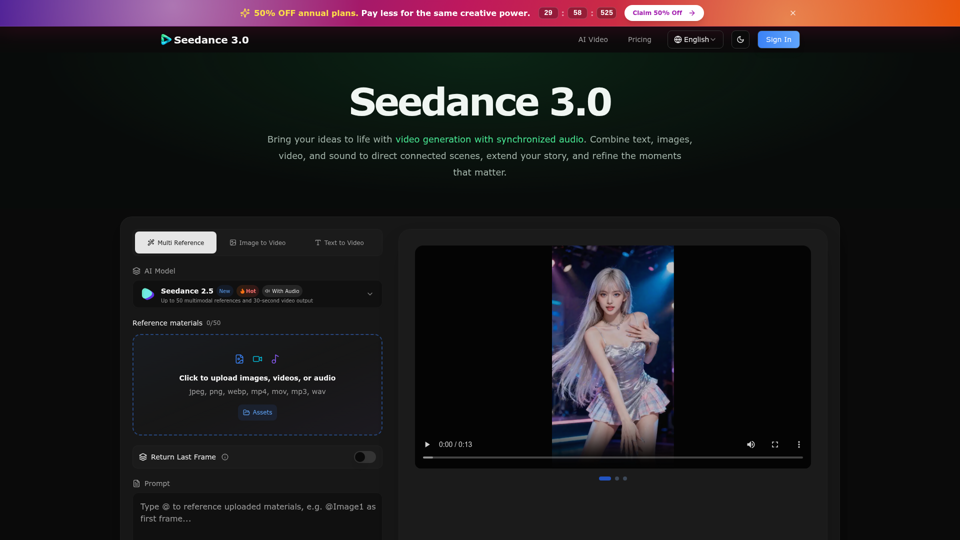
Create cinematic stories with Seedance 3.0. Turn text, images, video, and audio references into videos with synchronized sound and precise creative control.
Seedance 2.0 is the ultimate AI video generation platform. Create stunning videos with Seedance 2.0's text-to-video, image-to-video, and AI video effects tools.
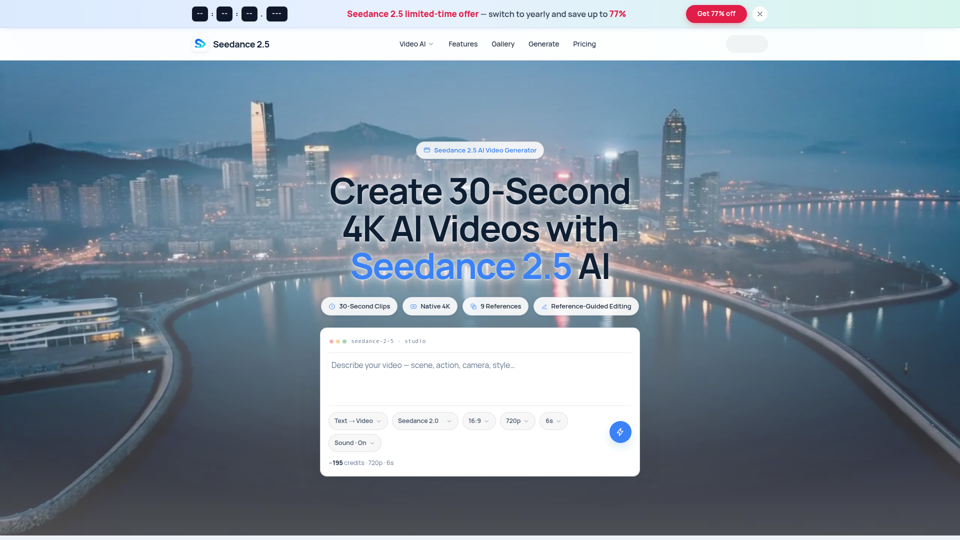
Seedance 2.5 AI turns any text prompt or photo into cinematic, watermark-free 4K video — text-to-video, image-to-video and reference-guided generation.
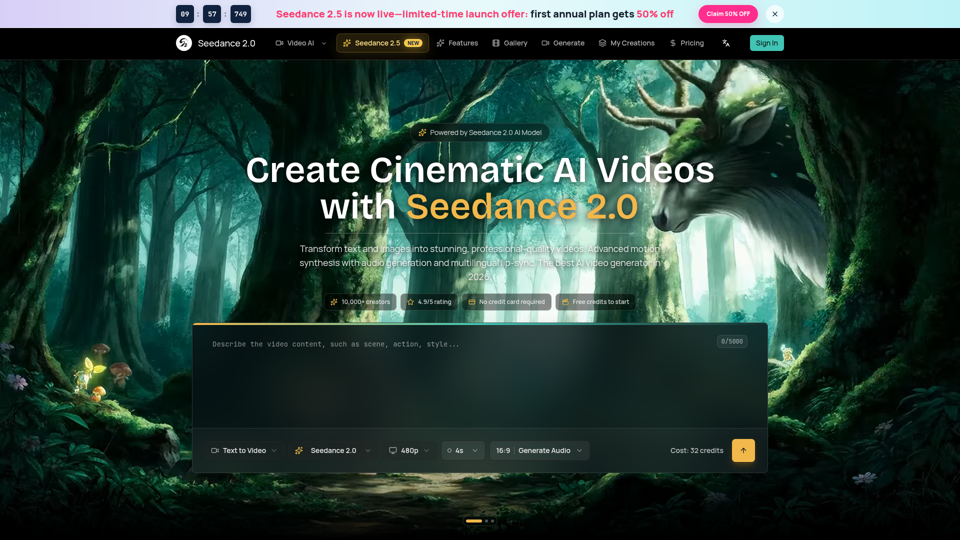
Seedance 2.0 AI video generator. Turn text and images into cinematic videos with motion synthesis, audio generation and lip-sync. Text-to-video & image-to-vi...
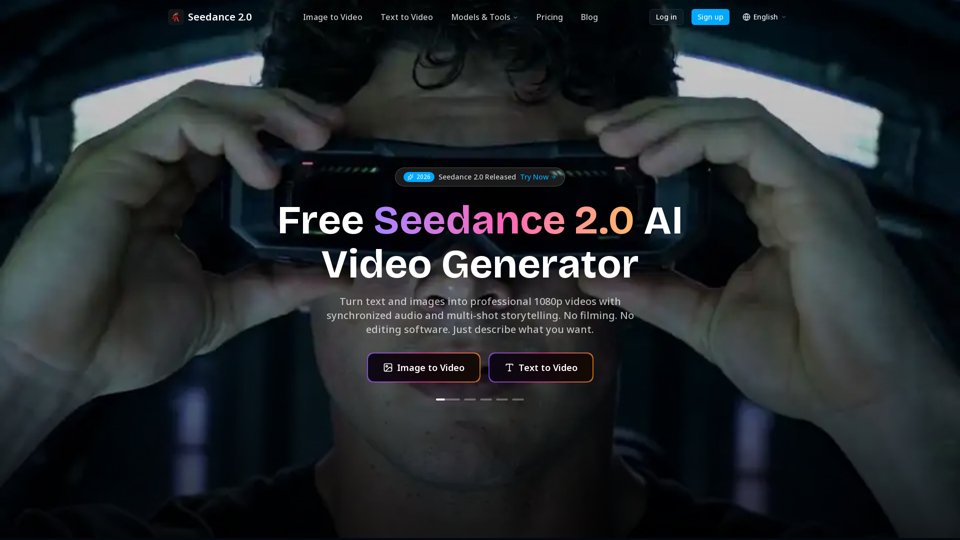
Create cinematic AI videos with Seedance 2.0. Text-to-video, image-to-video, native audio. The Seedance 2.0 AI video generator. Free to start.
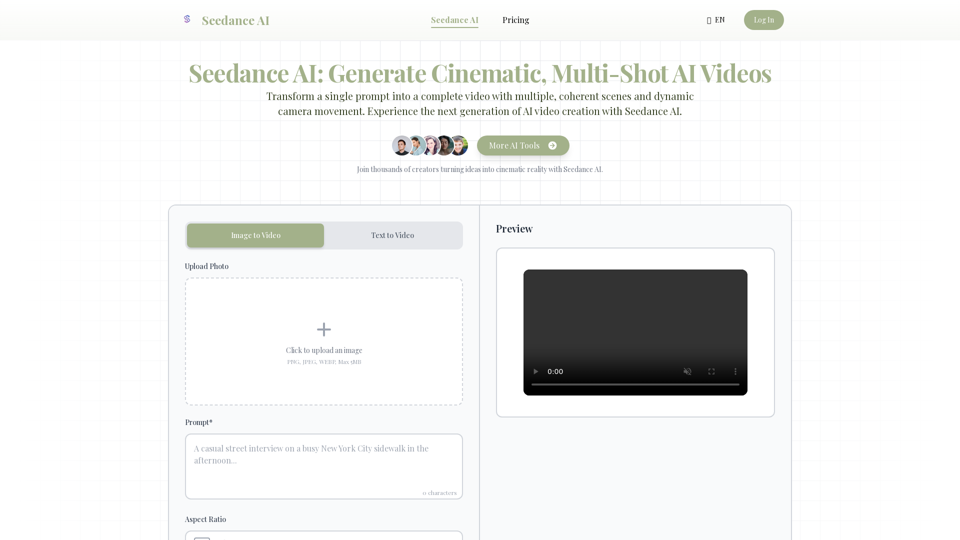
Generate cinematic, multi-shot videos from text with Seedance AI. Advanced AI creates coherent narratives with dynamic camera movement. Try free.
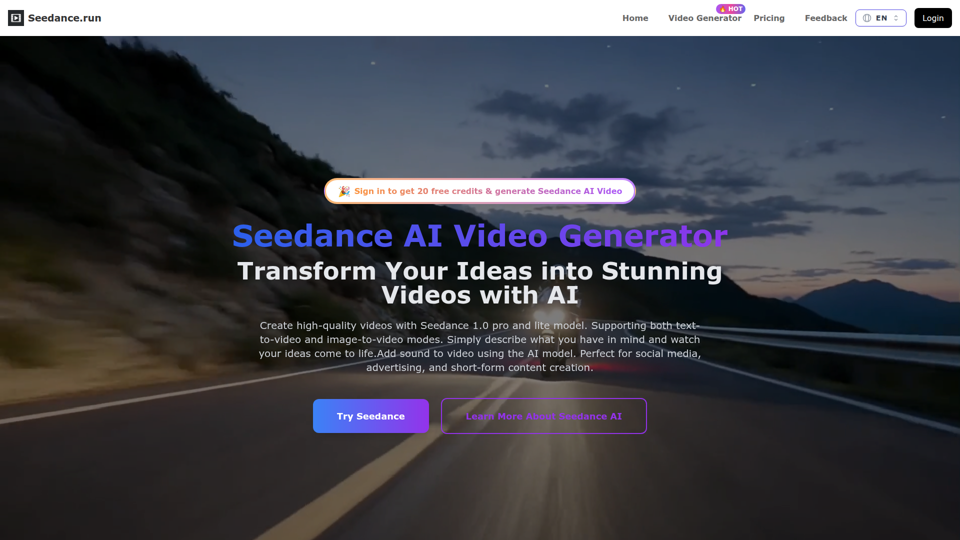
Create stunning AI videos from text or images with Seedance – the powerful AI video generator by ByteDance. Smooth, cinematic, and voice-ready results in minutes. Perfect for marketing, content creation, education, and more – no experience needed.