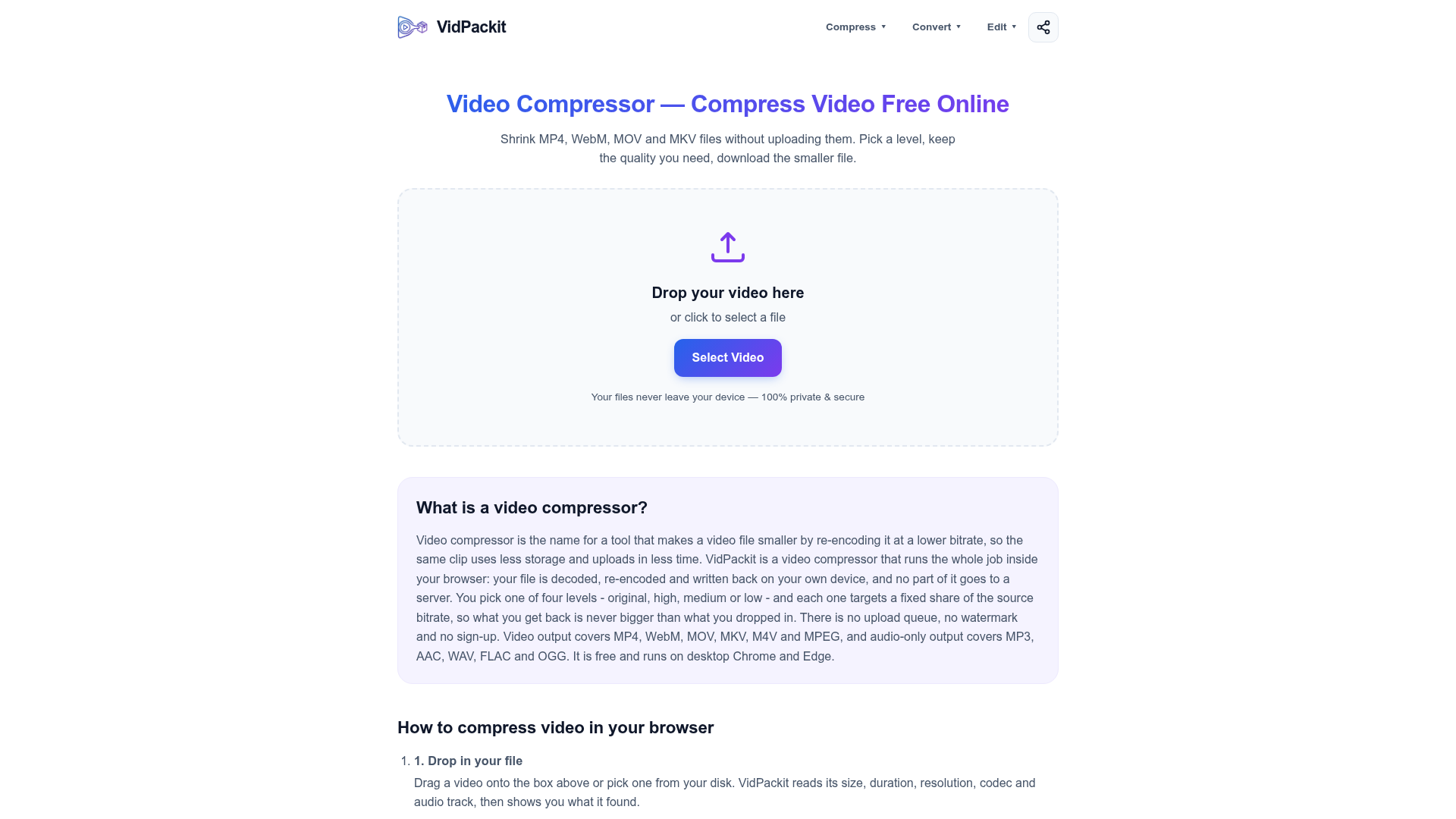
What is VidPackit Video Compressor?
VidPackit is a free, browser-based video compressor and converter that allows you to shrink video files without ever uploading them to a server. It works entirely within your browser using WebCodecs technology, ensuring 100% privacy as your files never leave your device. You can compress videos in formats like MP4, WebM, MOV, and MKV by simply selecting a quality level (Original, High, Medium, Low). The tool also offers conversion to multiple video and audio-only formats, making it a versatile solution for reducing file size for sharing, storage, or streaming.
Key Features of VidPackit
- Complete Privacy & Security
- All processing—decoding, encoding, and compression—happens locally in your browser. Your video data is never uploaded to any server, as verifiable through your browser's developer tools.
- Transparent Compression Control
- Unlike tools with vague sliders, VidPackit clearly shows the target video and audio bitrate for each compression level before you start, so you know exactly the trade-off between size and quality.
- Guaranteed Size Reduction
- The target bitrate is always clamped to the source file's bitrate. This means the compressed video will never be larger than your original file.
- No Account or Watermarks
- The service is completely free to use with no sign-up required, daily limits, or intrusive watermarks added to your output videos.
- Wide Format Support
- It acts as an MP4 compressor, WebM compressor, MOV converter, and more. It supports 6 video output formats (MP4, WebM, MOV, MKV, M4V, MPEG) and 5 audio-only formats (MP3, AAC, WAV, FLAC, OGG).
- Integrated Tools
- The platform also offers companion tools like a video trimmer to cut clips and a frame extractor to grab still images, all running in-browser.
How to Use VidPackit to Compress Videos
- Select Your Video: Drag and drop your video file onto the tool's interface or click to browse and select a file from your computer. The tool will instantly analyze its properties.
- Choose Settings: Select your desired ### Compression Level (Original, High, Medium, Low) and ### Output Format. You can optionally downscale the resolution to 720p, 480p, or 360p for further size reduction.
- Compress Locally: Click "Convert Video." Your browser will handle the encoding process locally, showing a progress bar. Once complete, download the smaller, compressed file directly to your device.
Compression Levels and Output Quality
VidPackit uses precise bitrate targeting based on your original file. Each level aims for a specific percentage of the source bitrate to balance file size and quality.
| Level | Target Video Bitrate | Target Audio Bitrate | Best For |
|---|---|---|---|
| ### Original | 100% of source | 100% of source (often copied, not re-encoded) | Changing container format without quality loss. |
| ### High | 70% of source | 100% of source | High-quality sharing with significant size savings. |
| ### Medium | 40% of source | 70% of source | A good balance for web use or messaging apps. |
| ### Low | 20% of source | 50% of source | Maximum compression for very limited storage or bandwidth. |
Price: Is VidPackit Free?
Yes, VidPackit is completely free. There is no subscription, no paywall, and no hidden fees. You can compress an unlimited number of videos without creating an account, and the output files will never contain a watermark.
Helpful Tips for Best Results
- For Best Performance
- Use the desktop versions of ### Google Chrome or ### Microsoft Edge, as they have the most complete support for the required WebCodecs API.
- Check Compatibility
- If using other browsers, note that unsupported output formats will be greyed out to prevent conversion failures.
- Understand Quality Loss
- Compression reduces file size by removing data. Use the "High" or "Medium" preset for the best quality-to-size ratio. The "Original" setting is for format conversion only.
- File Size Limits
- The tool itself has no size limit, but your device's available memory (RAM) is the constraint. Very large files (multiple gigabytes) may cause performance issues on phones or older computers.
- Verify Privacy
- You can confirm the tool works offline by disabling your internet after the page loads—the compression will continue since no data is being sent.
Frequently Asked Questions (FAQ)
Does compressing a video reduce its quality?
Yes, reducing the bitrate removes some detail to make the file smaller. The extent of quality loss depends on the level you choose. VidPackit shows the target bitrate upfront so you can make an informed decision.
Are my videos uploaded anywhere?
No. The entire compression process is executed locally within your browser tab using the WebCodecs API. You can verify this by monitoring network activity in your browser's developer tools.
Is there a file size limit?
VidPackit does not impose a limit. However, practical limits are set by your device's memory. Desktop computers can typically handle much larger files than mobile devices.
Which browsers are supported?
For full functionality, use ### desktop Chrome or Edge. Other browsers may work but often have incomplete WebCodecs support, which can limit format availability or display a warning.
Can I just convert a video without compressing it?
Absolutely. Select the ### "Original" compression level to repackage your video into a different container format (e.g., from MOV to MP4) without reducing its quality or bitrate.
What if I only need the audio from a video?
Use the "Audio only" output format options (like MP3 or AAC). This will extract and compress just the audio track, saving it as a separate file.
Video Compressor
Compress MP4, WebM, MOV and MKV in your browser with no upload, no watermark and no signup. Pick a level and download a smaller video. Start now.
 Cloudflare
 Google Analytics
 HTTP/3
Free AI anime and manga generator. Turn text into anime episodes, manga, comics, webtoons and comic shorts in any art style — no drawing or animation skills needed.
Translate image text across 70+ languages with our advanced AI Image Translator to help you better expand your products globally to various countries
Advertised Here
Reach thousands of visitors daily. Get your spot now!
Tools similar to Video Compressor
Batch convert and compress MP4/MOV, MP3/WAV, JPG/PNG/WEBP and 200+ formats with codec-aware presets, AI compression, and secure routing.
Convert MP4 to MP3 for 100% free, fast, securely in your browser. Supports files up to nearly 2GB. Try our local converter now!
Free browser tools to split video, convert formats, crop images, and extract audio. No signup, no upload, no watermark. Files never leave your device.
video watermark remover tool removes watermark from video online for free. Upload any video format and get watermark-free video in 2 minutes with AI-powered technology. Support MP4, AVI, MOV formats.
Convert YouTube videos to MP4 for free with our easy-to-use online tool. No software download required. Fast, secure, and compatible with all devices. Enjoy high-quality video downloads and watch your favorite content offline anytime, anywhere. Try the best YouTube to MP4 converter today!
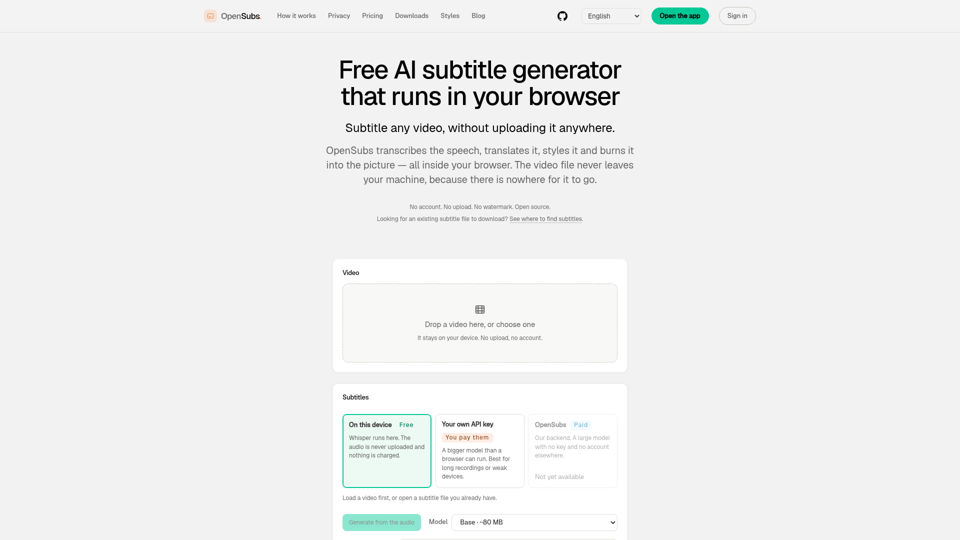
Transcribe, translate, style and burn subtitles into video — entirely in your browser. The video never leaves your machine. Free, no account, open source.
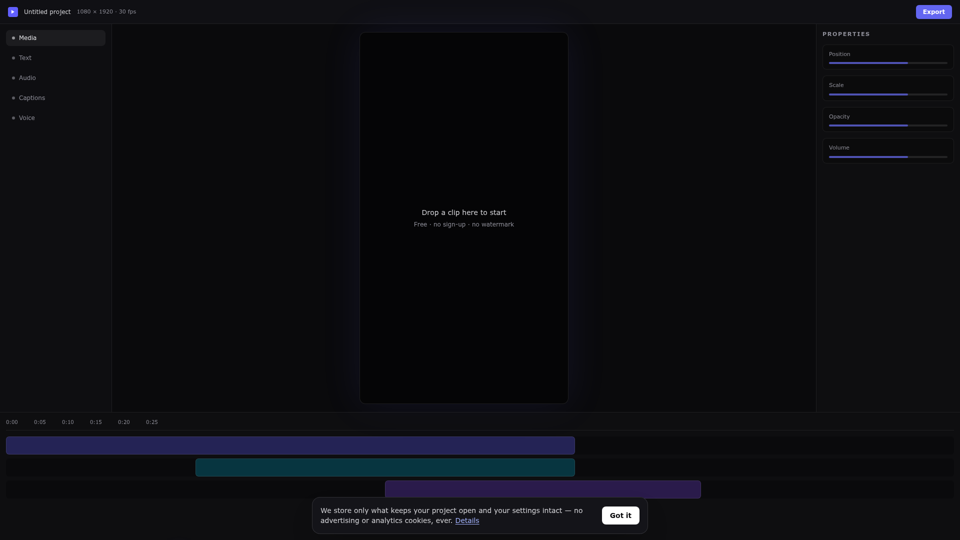
Edit videos online free in your browser. A real multi-track online video editor with auto captions, AI voiceover and background removal — no download, no sign up, no watermark.